¶ Mobile App
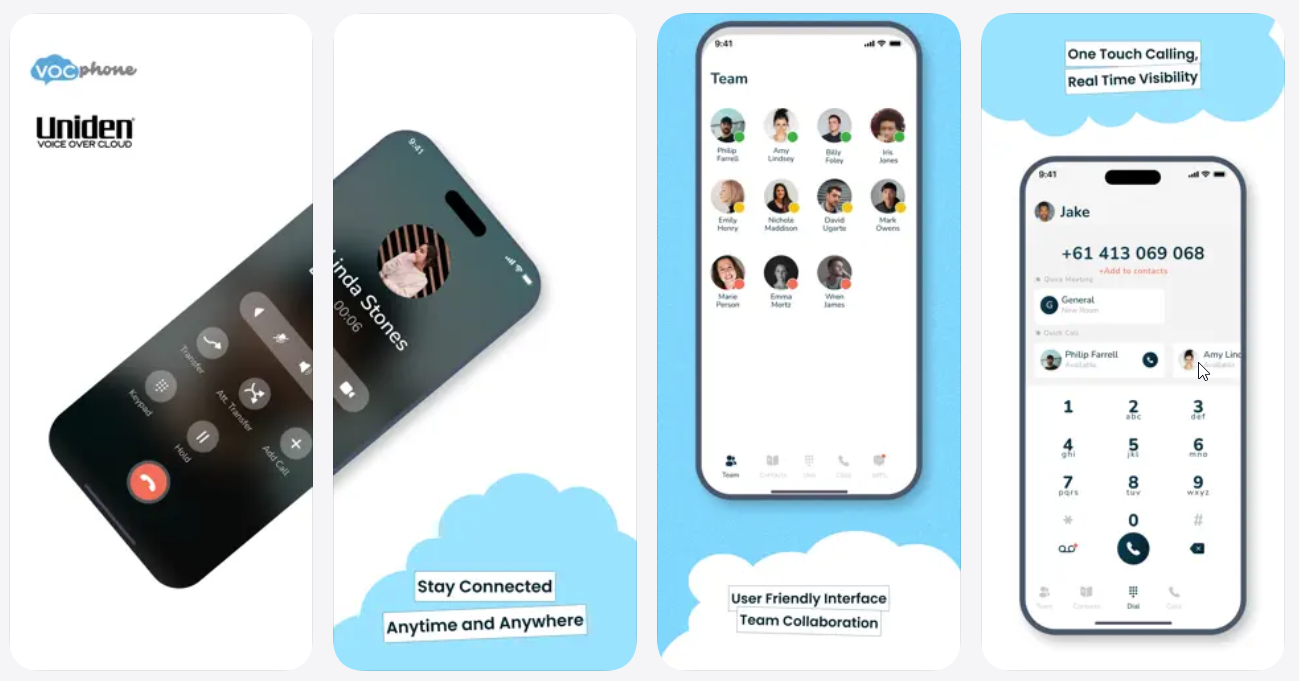
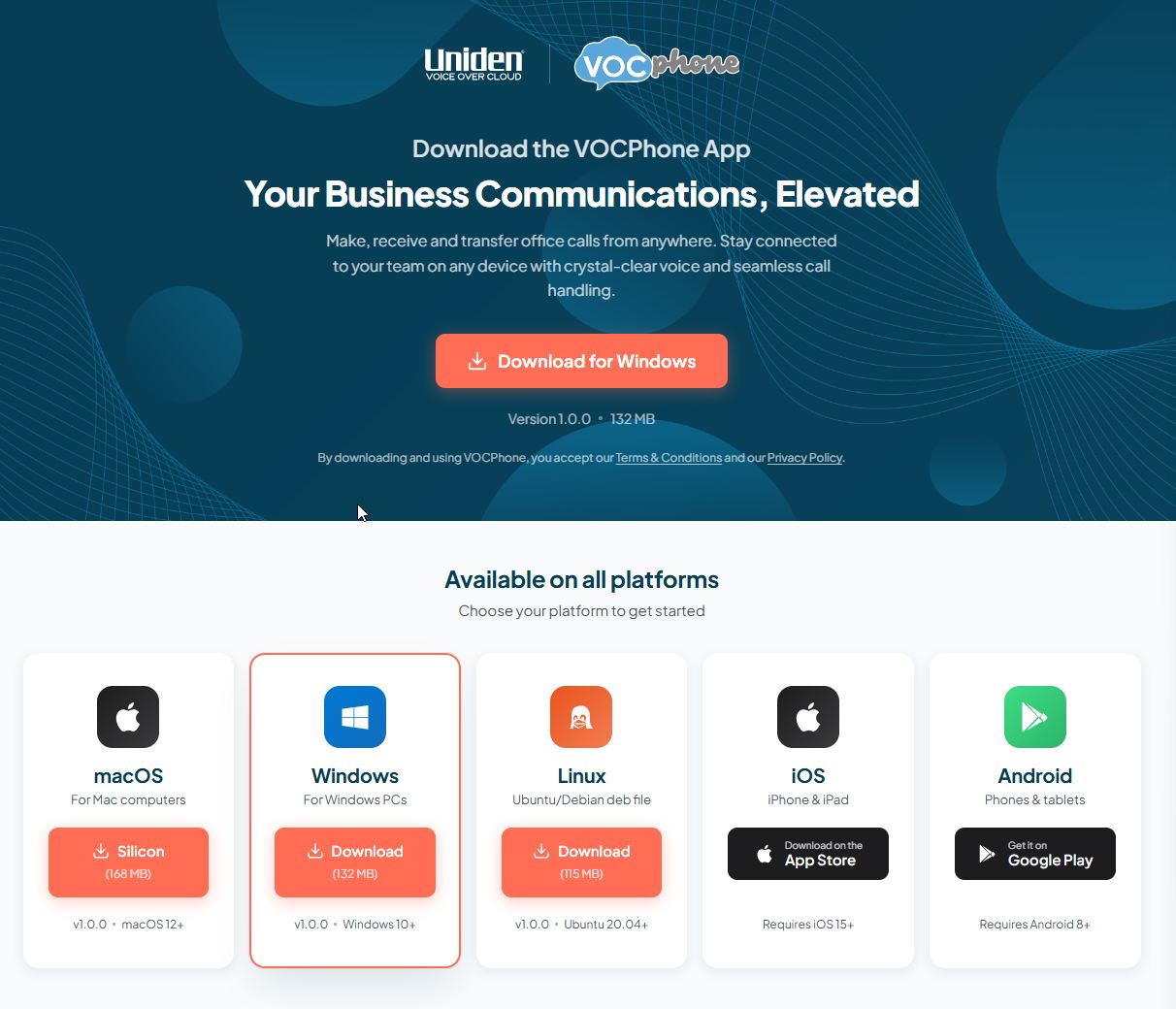
¶ Download VOCPhone Apps from our downloads page.
Our app is now compatible for many platforms and devices.
¶ How to Sign In
- Create a Phone user within your customer portal account with a valid email address.
- Once you have installed the Mobile App, you can sign in using one of two methods:
Email Login:
- Enter your email address on the login screen.
- A login link will be sent to your email. Tap the button to sign in.
Important: The phone user must have a Caller ID set, otherwise sign-in will not work correctly.
¶ Device Approval
When signing in on a new device, the login may require approval from an existing trusted device. The trusted device will receive a notification to approve or decline the new login.
¶ First-Time Setup
After signing in for the first time, the app will guide you through a permissions setup screen. You will be asked to grant access to:
- Microphone - Required for phone calls
- Camera - For QR code scanning
- Bluetooth - For wireless headsets
- Phone Calls - Android only
- Contacts - Optional, for syncing device contacts
- Media/Files - Optional, for file sharing
- Notifications - Required for incoming calls and messages
You can skip optional permissions and grant them later from your device settings.
¶ Get to Know the Layout
Once you sign into your account, you will be greeted with the main interface. The bottom navigation bar gives you access to all features:
- Team - Team members and real-time status
- Contacts - Contact directory
- Dial - Dialpad, meetings, and quick access (center tab)
- Calls - Call history
- Messages - Chat and SMS
The header bar at the top provides quick access to:
- Your profile avatar (tap to open settings)
- Your user status indicator
- Notification bell (view system notifications)
¶ Badge Indicators
The bottom tabs show badge counts to keep you informed:
- Messages tab shows the total unread chat and SMS count
- Calls tab shows the missed call count
- The app icon on your home screen shows the total of all unread items
¶ User Status
Set your availability status so your team knows when you are free or busy.
¶ Setting Your Status
Tap on your status indicator in the header or on the Dial screen to open the status picker. You can choose from:
| Status | Description |
|---|---|
| Online | Available and ready |
| Away | Temporarily away |
| Busy | Occupied, prefer not to be disturbed |
| DND | Do Not Disturb - calls and notifications suppressed |
| Offline | Appear offline to others |
¶ Preset Statuses
Quick-select common statuses:
- In a meeting
- On a call
- Out of office
- Do Not Disturb
- Away from computer
¶ Custom Status
You can also set a custom status message with an optional emoji to give your team more context (e.g. "Back at 2pm"). Choose from 12 quick emojis or use the full emoji keyboard.
¶ Status Expiration
Set your status to automatically clear after a chosen duration:
- 30 minutes
- 1 hour
- 4 hours
- Today
- This week
- Don't clear (manual)
¶ Automatic Status
When you are on a phone call, your status automatically changes to On Call or Ringing and reverts back once the call ends. Status changes sync in real-time across all your devices.
¶ Chat Feature
The chat feature uses secure end-to-end messaging. There are two types of chat: Direct Chat and Group Chat.
¶ Chat Tabs
The Messages screen has three tabs:
- Direct - One-on-one conversations
- Group - Group conversations
- SMS - SMS conversations
¶ Direct Chat
Start a one-on-one conversation with any team member:
- Tap the "+" button at the bottom of the chat list
- Search for the user you want to chat with
- Tap on their name to create a direct chat room
¶ Group Chat
Create rooms for departments, teams, or projects:
- Tap the "+" button at the bottom of the chat list
- Select "Create Group Chat"
- Enter a room name
- Add the users you want in the group
- Tap Create
The person who creates the room is the moderator and can add or remove members.
¶ Sending Messages
- Type your message in the input field and tap the send button
- Attach files using the attachment button
¶ Replying to Messages
- Long-press on a message and select Reply to quote and reply to a specific message
- The original message will be shown above your reply for context
¶ Editing and Deleting Messages
- Edit: Long-press on your own message and select Edit to modify it. Edited messages show an "edited" badge.
- Delete: Long-press on your own message and select Delete to remove it
¶ Reactions
Add emoji reactions to any message:
- Tap the reaction icon on a message to quick-react
- Long-press for the full emoji picker to choose any emoji
¶ Mentions
Use the @ symbol to tag someone in a message. This will send a notification to that person on their device. An autocomplete picker will appear as you type the name.
¶ File Sharing
Share files directly in chat:
- Images - Upload and share photos (single or multiple in a gallery)
- Videos - Share video files
- Documents - Share PDFs, spreadsheets, code files, and more
- Audio - Share audio recordings
¶ File Viewers
View shared files directly within the app without downloading:
- Image viewer - Pinch to zoom, swipe between gallery images, share to other apps
- Video player - In-app video playback
- PDF viewer - Read PDF documents in-app
- CSV/Excel viewer - View spreadsheet data in a table
- Code viewer - View code files with syntax highlighting
- Audio player - Listen to audio files with waveform display
¶ Searching Messages
Search through the entire history of your conversations:
- Tap the search bar at the top of the chat list
- Toggle between "Search Chats" (find conversations by name) and "Search Messages" (find messages by content)
- Tap on a result to navigate directly to that conversation or message
¶ Read Receipts
See who has read your messages. Read indicators with user avatars appear next to sent messages.
¶ Typing Indicators
See when other users are currently typing a message in the conversation.
¶ Draft Messages
Unsent messages are automatically saved per conversation. When you return to a chat, your draft (including any reply context) will be restored. Drafts persist even if you close the app.
¶ Managing Chat Rooms
Long-press on any chat room or tap the room details to access:
- Pin/Unpin - Keep important chats at the top of your list
- Notification settings - Choose notification level:
- All messages - Notify for every message
- Mentions only - Only notify when you are @mentioned
- Direct mentions only - Only notify for direct @mentions
- Muted - No notifications
- View members - See who is in the room
- Invite members - Add people to the room (if permission)
- Leave room - Exit the conversation
¶ Mark All as Read
Use the Mark all as read option to clear all unread indicators across all conversations at once.
¶ SMS Feature
View and send SMS messages for every number or sender ID that you have been given access to.
Note: To give access to a number or Sender ID, this must be done via the Customer Portal by an admin user.
¶ Sending an SMS
- Open the SMS tab in the Messages screen
- Tap "Compose SMS" to create a new message
- Search or type in the phone number of the receiver
- Select the mobile number or sender ID you wish to send from
- Type your message and send
Note: One SMS is 160 characters. Longer messages will be split into multiple SMS charges.
¶ Service Number Filtering
If you have access to multiple numbers, use the tabs to filter conversations by specific number or sender ID, or view All Service Numbers at once.
¶ Tags / Display Names
Tags appear next to SMS numbers to identify the department or purpose (e.g. "SUPMOB", "VOCMOB").
To manage display names/tags, update them in the Customer Portal under your numbers page (https://portal.vocphone.com/?p=numbers).
¶ Draft Messages
Unsent SMS messages are automatically saved per conversation and restored when you return.
¶ Mark as Read
- Tap on a conversation to mark it as read
- Use Mark all as read to clear all unread indicators
¶ Real-Time Updates
New incoming SMS messages appear instantly via real-time notifications, even when the app is in the background.
¶ Calls Page and Features
The Calls page provides a complete view of your call activity.
¶ Call History Tabs
- Call Logs - All calls made and received on this device
- Missed Calls - Missed and unanswered calls
- Account Calls - Call history across all your devices (fetched from server)
¶ Searching Call History
Use the search bar to find calls by:
- Phone number
- Contact name
- Extension number
¶ Call Recordings
Play call recordings directly from the Mobile App:
- Find the call in your history
- Tap on the call to open details
- Tap the play button to stream the recording
- Use playback controls to pause, seek, and adjust volume
¶ Call Notes
Add notes to any call for future reference (when enabled in Settings). Notes are saved and visible whenever you view that call's details.
¶ Making a Call
There are several ways to initiate a call:
- Dialpad - Enter a number on the Dial screen and tap the call button
- Tap to call - Tap a phone number from contacts, teams, or call history
- Favorite contacts - Quick-dial cards on the Dial screen show your favorited contacts with their real-time status
¶ In-Call Features
When you are on an active call, the in-call interface provides full control.
¶ Call Controls
| Control | Description |
|---|---|
| Mute/Unmute | Toggle your microphone on or off |
| Speaker | Switch between earpiece, speaker, or Bluetooth device |
| Hold/Resume | Put the call on hold or resume it |
| Keypad (DTMF) | Open the keypad to send touch-tones during a call (e.g. for IVR menus) |
| Transfer | Transfer the call to another person |
| Add Call | Start a conference call |
| Record | Record the call (if permission is granted) |
| Video | Enable or disable video for video calls |
| End Call | Hang up the call |
¶ Audio Routing
During a call, tap the speaker button to choose your audio output:
- Phone (earpiece)
- Speaker (loudspeaker)
- Bluetooth (if a wireless headset is connected)
¶ Call Transfer
There are two types of transfer:
Blind Transfer:
- Tap the Transfer button
- Enter the number or search for a contact
- The call is immediately transferred - the other party hears ringing
Attended Transfer (Consultation):
- Tap the Transfer button
- Enter the number or search for a contact
- You are connected to the transfer target first to introduce the call
- Tap Complete Transfer to connect the original caller to the target
- Or tap Cancel to return to the original caller
¶ Multi-Call Management
The app supports handling multiple simultaneous calls:
- When a second call comes in, you will see a call waiting notification
- Answer the second call - the first call is automatically placed on hold
- Switch between calls using the call interface
- Merge calls into a conference
¶ Video Calls
For video calls, additional controls are available:
- Remote video displayed on the main screen
- Local video preview shown as a small picture-in-picture overlay
- Switch camera button to toggle between front and rear cameras
¶ Do Not Disturb (DND)
When DND is enabled:
- All incoming calls are automatically rejected
- Call notifications are suppressed
- Your status shows as DND to other team members
Toggle DND from the Settings screen.
¶ Proximity Sensor
When enabled in Settings, the screen automatically turns off when you hold the phone to your ear during a call, preventing accidental touches.
¶ Team Feature
The Teams feature lets you see your team members, their real-time availability, and quickly call them.
¶ Team Member Status
Each team member shows a real-time status indicator:
| Status | Color | Description |
|---|---|---|
| Online | Green | Available |
| Away | Yellow | Temporarily away |
| Busy | Red | Occupied |
| DND | Red | Do Not Disturb |
| Ringing | Blue (blinking) | Currently receiving a call |
| On Call | Red (blinking) | Currently on a call |
| Offline | Grey | Not connected |
¶ Filtering Team Members
Use the filter tabs to quickly find members by status:
- All - Show everyone
- Available - Online members only
- On Call - Members on active calls
- Ringing - Members currently being called
Each tab shows a count of members in that status.
¶ Team Member Cards
Each team member card displays:
- Avatar with status indicator
- Name and extension
- Custom status message and emoji (if set)
¶ Quick Actions
Tap on a team member to quickly call them.
¶ Contacts
The Contacts page is your directory of all available contacts with search, filtering, and detailed views.
¶ Contact Tabs
| Tab | Description |
|---|---|
| All | All contacts from every source |
| Device | Contacts synced from your phone |
| Favourite | Your starred contacts |
Additional tabs may appear for other contact sources such as shared phonebooks.
¶ Searching Contacts
Search by:
- Name
- Phone number
- Extension
- Email address
¶ Contact Details
Tap on a contact to view their full profile:
- Name and avatar
- Phone number(s) and extension
- Email address
- Real-time presence status (for internal contacts)
¶ Quick Actions from Contact Details
- Call - Tap any phone number to dial
- Chat - Start a chat conversation
¶ Favorite Contacts
Star a contact to add them to your Favourites for quick access. Favourite contacts also appear as quick-dial cards on the Dial screen with their real-time status.
¶ Meet Page and Features
Create and join video meetings with your team and external participants. Meetings are powered by Jitsi for high-quality video conferencing.
¶ Accessing Meetings
The Meetings section is available from the Dial screen, below the dialpad.
¶ Meeting Types
Quick Rooms:
- Pre-generated meeting rooms that your team can join anytime
- Ideal for spontaneous calls or daily standups
- Tap a room to join instantly
Scheduled Meetings:
- Tap "Schedule Meeting"
- Set the meeting name, date, and time
- Add participants
- Choose recurrence (if needed): Weekly or Monthly
- Set an end date for recurring meetings
- Tap Schedule
¶ Meeting List
View all your meetings with:
- Meeting name/title
- Start time and date
- Next occurrence (for recurring meetings)
- Participant count
- Join button when it is time to attend
¶ In-Meeting Features
Once you join a meeting:
- Audio mute/unmute - Toggle your microphone
- Video on/off - Toggle your camera
- Screen share - Share your device screen
- Chat - In-meeting text chat
- Participant list - See who is in the meeting
- Full-screen mode - Maximize the video view
- Picture-in-picture - Continue viewing the meeting while using other apps
¶ Audio Management During Calls
When you receive a phone call while in a meeting:
- The meeting audio is automatically muted
- After the call ends, meeting audio is restored to its previous state
This ensures phone calls always take priority without manual intervention.
¶ Settings
Access Settings by tapping your profile avatar in the top-left corner of the screen.
¶ Profile Settings
| Setting | Description |
|---|---|
| Avatar | Tap to upload or change your profile picture |
| Name | Your display name |
| Caller ID | Select your outgoing caller ID |
| Balance | View your account credit balance |
¶ Preferences
| Setting | Description |
|---|---|
| Call DND | Toggle Do Not Disturb to suppress calls |
| Enable Call Notes | Toggle the ability to add notes to calls |
| Proximity Sensor | Auto-lock screen when phone is held to your ear |
| Select Ringtone | Choose a custom ringtone for incoming calls |
¶ Privacy & Security
| Setting | Description |
|---|---|
| Trusted Devices | View and manage your trusted devices |
| Privacy Policy | Link to the privacy policy |
| App Permissions | View permissions granted to the app |
| Support Pin | View your support PIN for troubleshooting |
¶ Advanced / Debug Mode
To enable debug mode, tap the version number 5 times or long-press it:
| Setting | Description |
|---|---|
| Enable Debug Mode | Enable detailed SIP logging |
| Sync Log File | Upload diagnostic logs to the server |
| Clear Notification Badge | Reset the app badge count |
¶ Logout
Tap Logout to sign out. A confirmation dialog will appear. Logging out clears all local data from the device.
¶ Notifications
¶ Notification Types
The app sends push notifications for:
- Incoming calls - Full-screen notification with caller name and number, with Answer and Reject buttons
- New chat messages - With sender name and message preview
- New SMS messages - With sender and message preview
- Missed calls - After an unanswered call
- Device approval requests - When a new device attempts to sign in
Tap on any notification to open the app and navigate directly to the relevant conversation or screen.
¶ Per-Room Notification Settings
Customize notifications for each individual chat room:
- All messages - Notify for every message
- Mentions only - Only notify when you are @mentioned
- Direct mentions only - Only notify for direct @mentions
- Muted - No notifications from this room
¶ Notification Bell
Tap the bell icon in the header to view system notifications, including:
- Device approval requests - Approve or decline new device logins
- System alerts - Important announcements
A badge count shows the number of unread system notifications.
¶ Device Approval Notifications
When someone attempts to sign in on a new device, you will receive a notification with:
- Device type (Mobile or Desktop)
- Device name and platform
- IP address and location
- Timestamp
You can Approve or Decline the login request directly from the notification panel.
¶ Do Not Disturb
When DND is enabled:
- Incoming calls are silenced and auto-rejected
- Chat and SMS notifications are suppressed
- Your status shows as DND to other team members
¶ Connection & Network
The app monitors your network connection and automatically handles disconnections.
¶ Offline Support
The app stores your data locally using an offline database. You can browse your chat history, call logs, and contacts even without an internet connection.
¶ Automatic Reconnection
When your connection is restored, the app automatically reconnects all services:
- Phone (SIP) - Calling service
- Chat (Matrix) - Messaging service
- WebSocket - Real-time updates and presence
¶ Background Operation
The app continues to receive incoming calls and notifications even when running in the background or when the screen is locked, ensuring you never miss an important call or message.
Archieved Articles