Add and configure users in the Uniden Voice portal — devices, call packs, caller ID, voicemail, handset setup, and address books.
¶ Devices per user
Each user can register up to 3 devices:
| Device | Limit |
|---|---|
| Uniden handset | 1 |
| Mobile app | 1 |
| Windows app | 1 |
¶ Add a user
Your plan determines how many users are included.
- Click Add User.
- Enter the user's details.
- If your business has a second location, add its address to your account: open the Address field and click Create New Address.
A Uniden handset's local time is based on the address assigned to that user. If the user is at a different location, assign the correct address or the handset will show the wrong time.
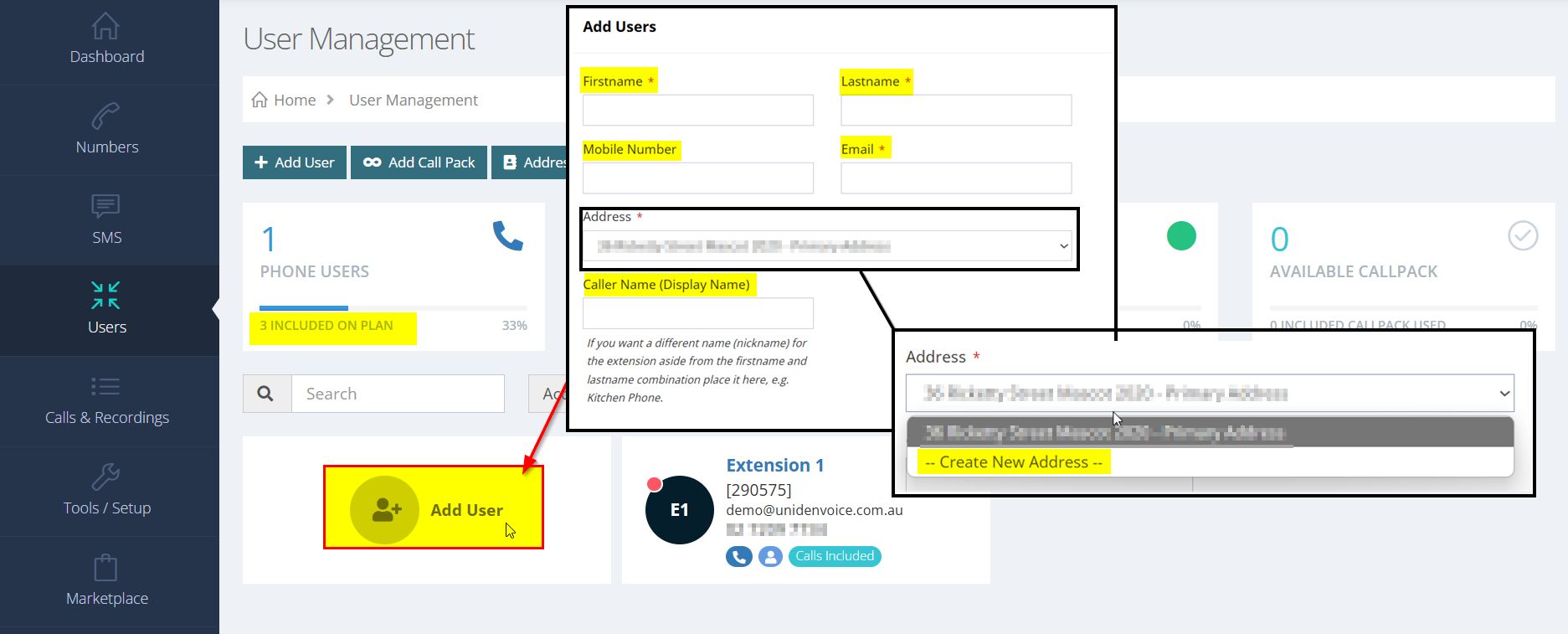
Display name — shown on devices such as mobile apps, and to internal users when they receive a call from this user.
¶ Plans and included users
| Plan | Included users | Call packs |
|---|---|---|
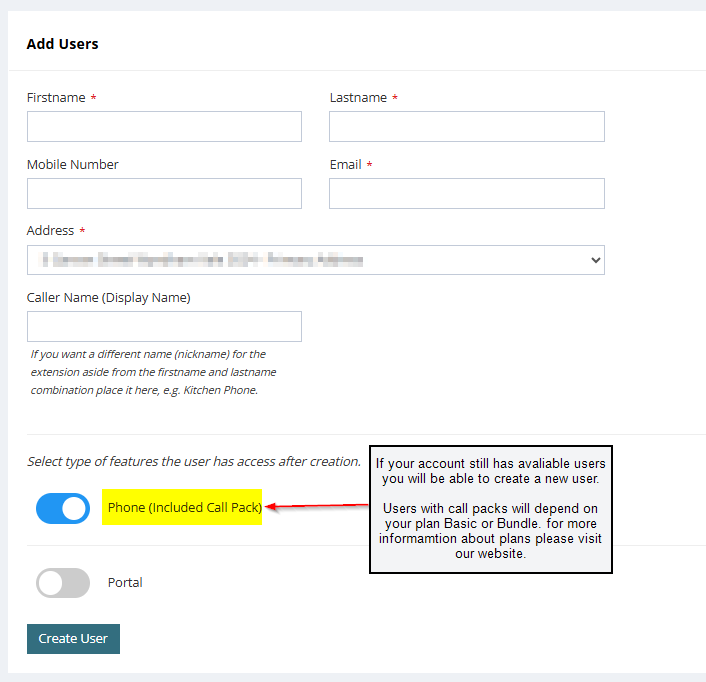
| Bundle | Per plan | Users have included call packs |
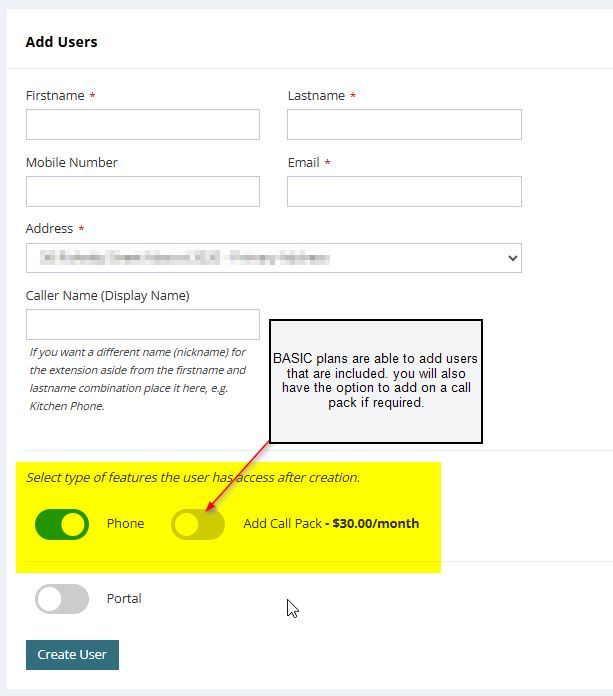
| Basic | Per plan — add users while included ones remain unused | Add a call pack to give a user unlimited calls |
| Sole Trader | One user with phone service; portal-only users don't count | — |
Bundle plan — users with included call packs appear as below.
Basic plan — you can add a user if you have not used all included users on the plan. If required, add a call pack to give that user unlimited calls.
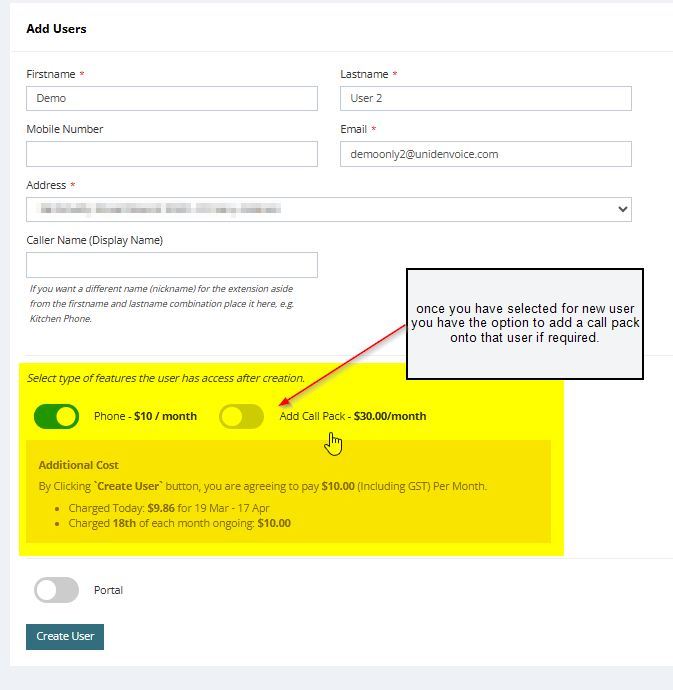
If you have used all included users, you can still add extra users via the portal:
- $10 per extra user, or $30 per extra bundle user (bundle users include a call pack).
- Additional call packs are also charged to the account.
- Alternatively, upgrade to a higher plan — see the Uniden Voice website for plan details.
Sole Trader plan — extra phone users can't be added. Once one user has phone service you can still add portal-only users, but Make phone user on their page is greyed out with Your Sole Trader plan is limited to one user with phone service. To make this user a phone user, please upgrade your plan.
¶ Add a call pack
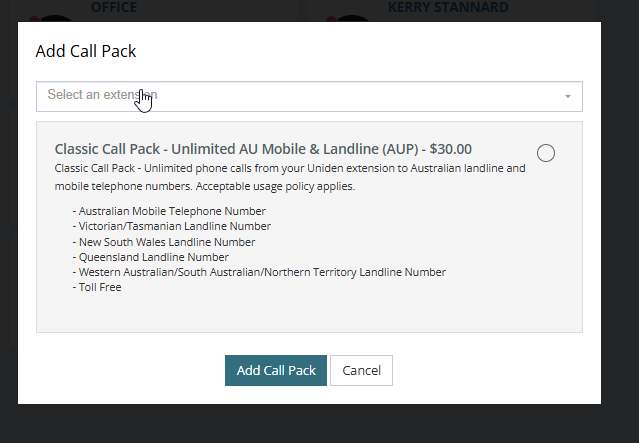
To add a call pack to an existing user that does not have one:
- Go to Users and select the user.
- Open the Voice section and click + Add call pack.
- Tick the Classic call pack box.
- Click Add Call Pack to complete the purchase.
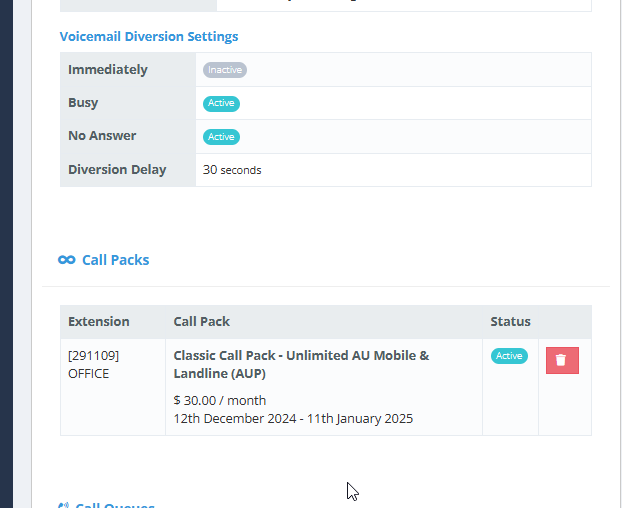
Call packs can also be added — or removed — from within the user's profile.
¶ Export the extension list
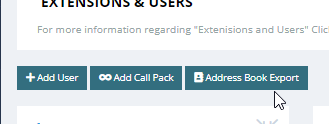
- Go to My Extensions & Users.
- Click Address book export.
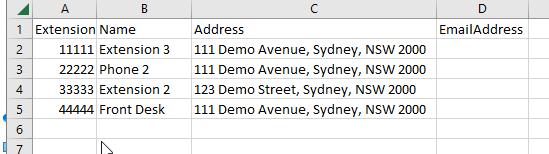
- Open the downloaded CSV file to view your full extension list.
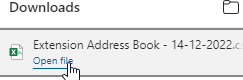
The export includes the extensions, names, address, and email addresses of those extensions.
¶ Configure a user
Click a user to configure the settings below.
To set what a user can see and do in the portal (their access level and permissions), see Roles and permissions.
¶ User details
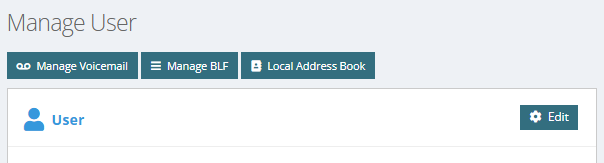
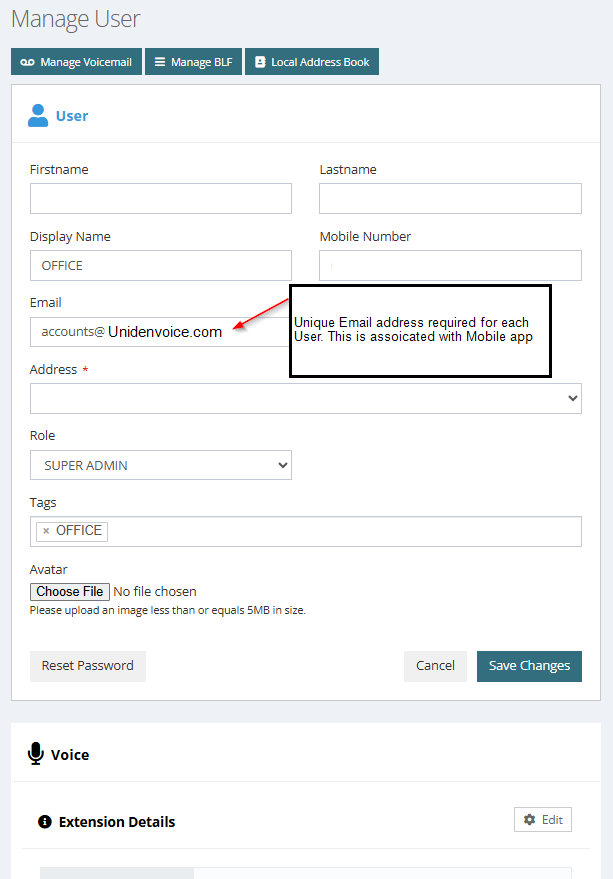
Name the extension and set its caller ID. Click Edit at the top right of the window.
User setup and mobile app email setup:
¶ Dialling restrictions
Call restrictions apply per user, so you control how each user dials out.
Allow External Dialling — disable this to limit the user to internal calls plus 000 (Emergency Services).
¶ Set caller ID
- Under Voice, click Edit.
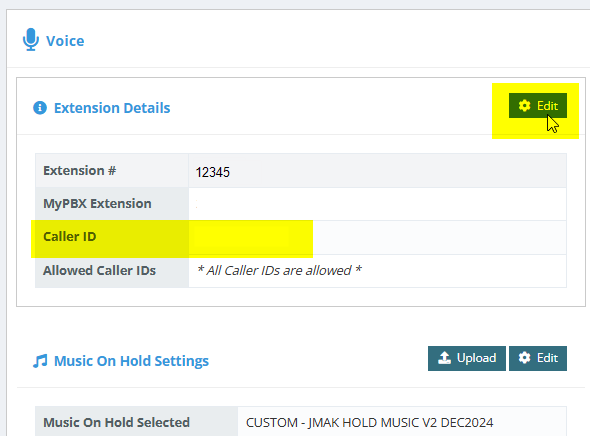
- Choose the caller ID.
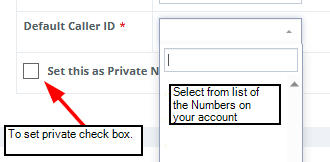
- Select the number to present. To make the extension private, tick the box.
- Click Save.
¶ Voicemail settings
Add an email address for voicemail-to-email, upload or record your voicemail message, or set diversion settings.
To upload a voicemail greeting, click Upload and choose your audio file.
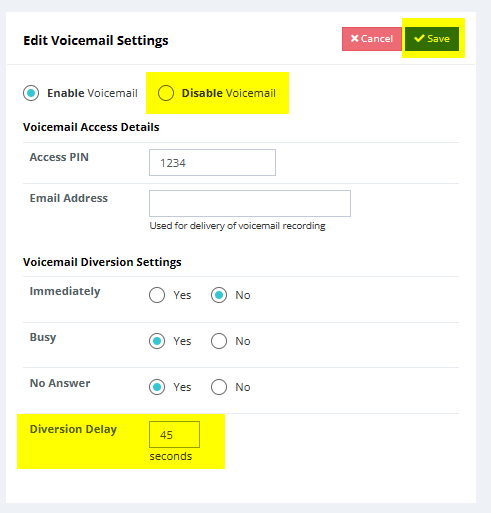
The Access PIN is no longer used for the voicemail option.
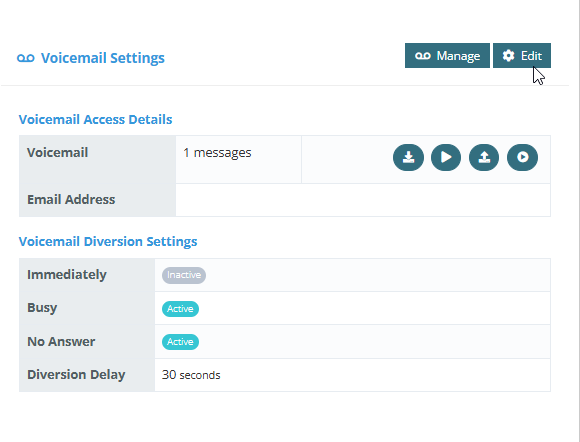
If voicemail is disabled, the diversion delay (time-out) defaults to 30 seconds. To use a different delay, change it before disabling voicemail. Example: with the delay set to 45 seconds and voicemail disabled, the system ends the call after 45 seconds if the agent has not answered.
¶ Privacy settings
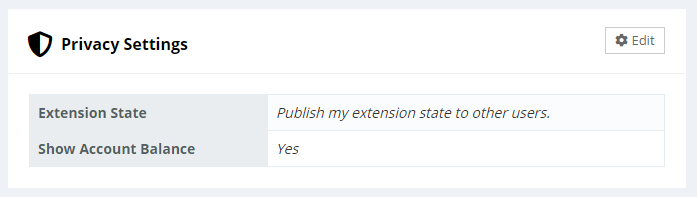
Choose whether to display your online/offline status to other extensions.
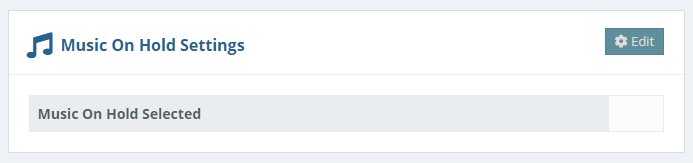
¶ Music on hold
Choose the hold music your extension plays when you place someone on hold.
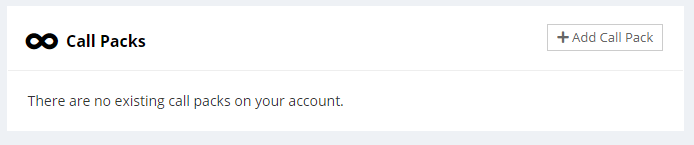
¶ Call packs
Add or remove call packs for the extension. Call packs give unlimited outbound calling to local, national, and mobile numbers.
¶ Manage handset type
Register the extension to a Uniden handset (plug and play), the mobile app, the Windows app, or a 3rd-party SIP phone.
¶ Send setup instructions to a staff member
- Select the device the user will set up — Mobile Phone or PC Phone.
- Click the Send button that appears at the top right to email the instructions.
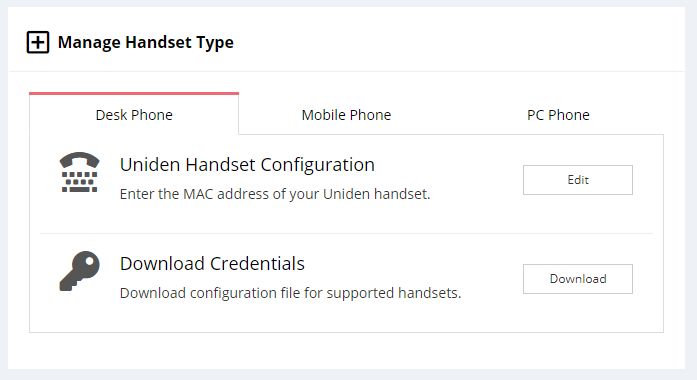
¶ Configure a plug and play Uniden EVOC handset
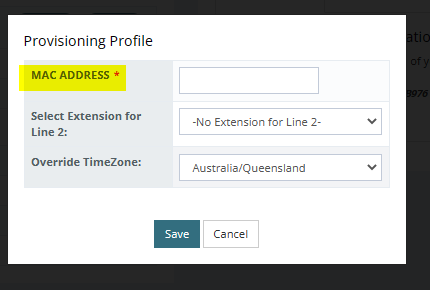
Add the handset's MAC address to the extension you want it registered to. The MAC address is on the back of the phone or on its box.
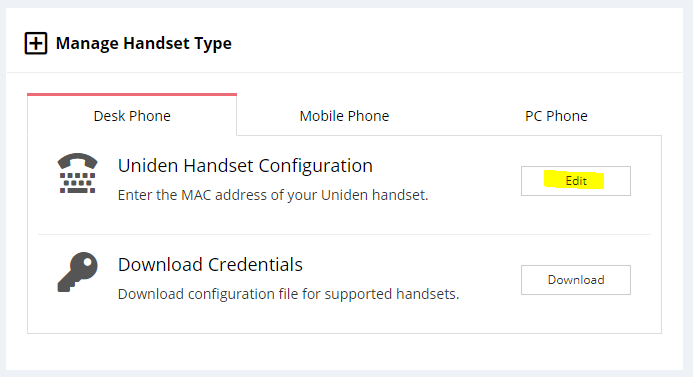
Enter the MAC address and click Save.
¶ Configure the mobile app
- Click Send Email invitation — this emails the setup information to the address in the user's profile. Click to view.
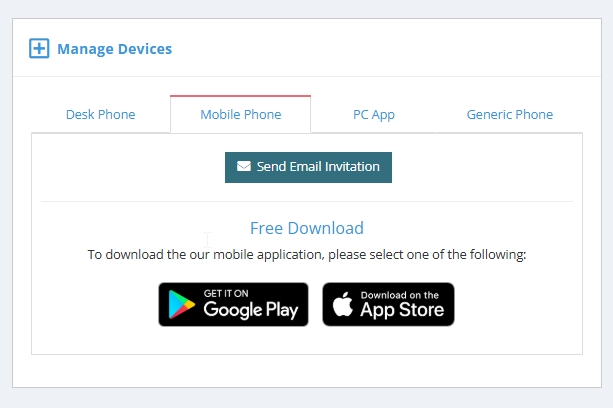
- On the Mobile Phone tab, download the app from the Apple App Store or Google Play — see the mobile app guide.
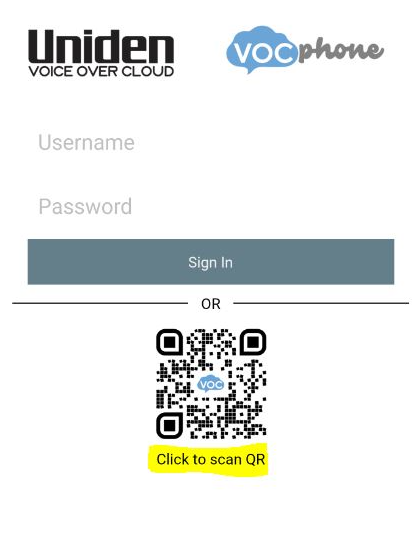
- Open the app and choose Scan QR code (rather than login) to register.
¶ Configure the Windows app
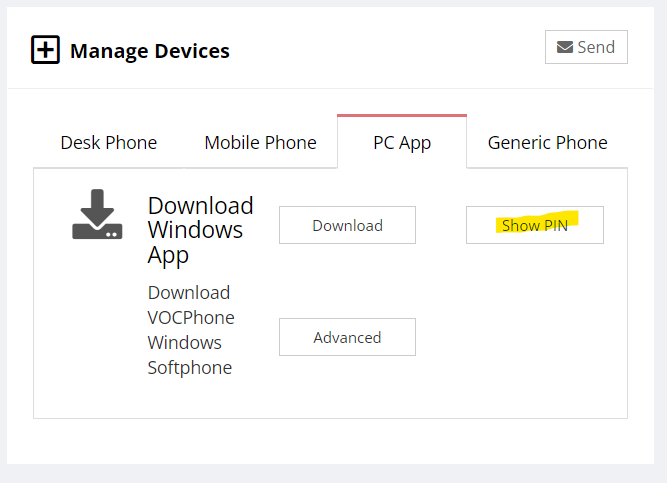
- Download the Windows app — see the desktop app guide.
- On the PC Phone tab, click Show Pin to display the PIN for the extension.
¶ Import an address book
Import your own address book using the CSV template.
- Go to the extension and click Local Address book.
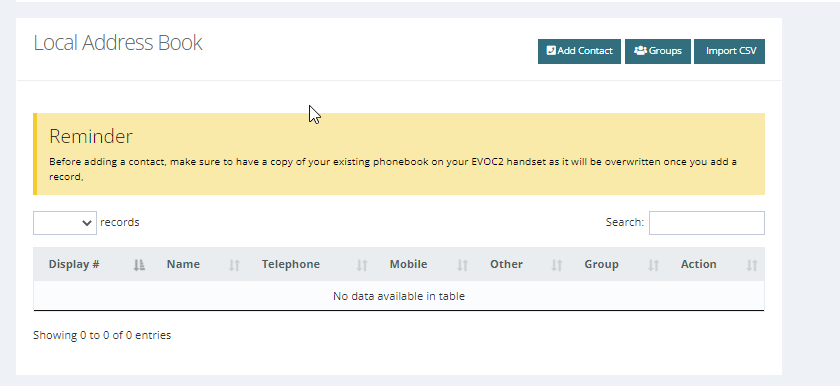
- Click Import CSV, using the template for the correct format: extension_phonebook.csv
- Import the finished CSV into each extension that needs the phonebook.
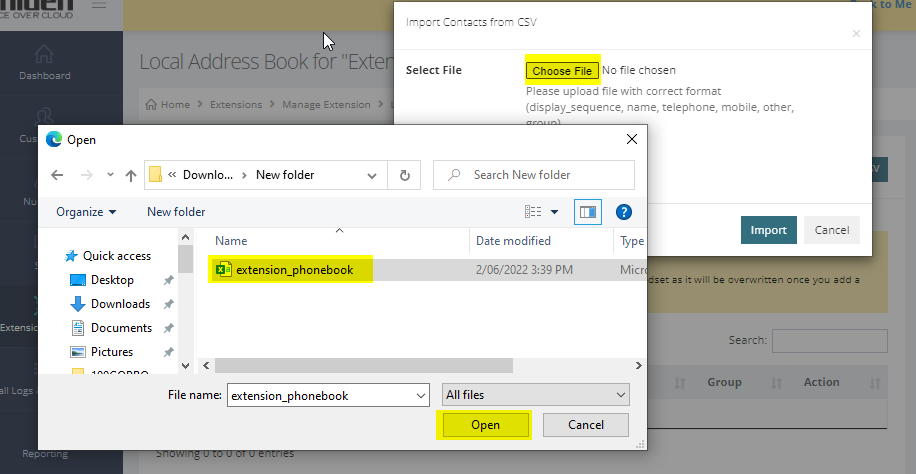
- Click Import and follow the prompts.
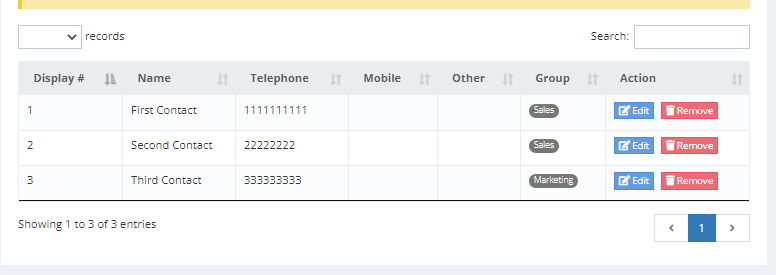
Once uploaded, the address book appears on that extension.
¶ Address groups
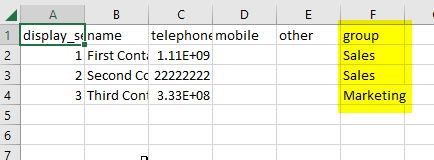
You can group contacts in your address book. Create the groups first by clicking Groups on the Local Address book page, then set them in the Groups column of your CSV.
¶ Related
- Roles and permissions — control what each user can see and do
- Mobile app guide
- VocPhone desktop app guide
- Handsets