Run, read, and export call reports for your service numbers, and schedule reports to arrive by email.
Open the portal sidebar and go to Calls & Records → Call Report. (The page is currently headed Call Logs.)
¶ Run a report
The page opens empty. Set your filters, then click Search — nothing runs until you do.
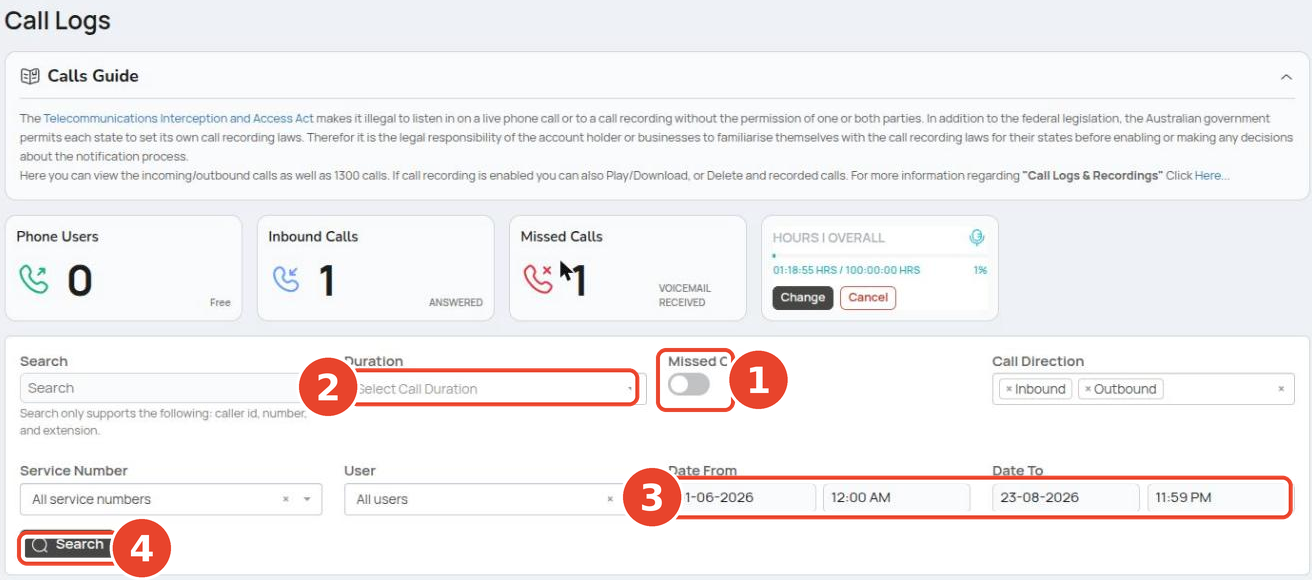
① Missed Calls toggle ② Duration ③ Date From / Date To ④ Search button
| Filter | What it does |
|---|---|
| Search | Match a caller ID, number, or extension |
| Duration | Filter by call length, from 0 min - 1 min up to > 3 hr |
| Missed Calls | Show missed calls only (off by default) |
| Call Direction | Inbound / Outbound chips |
| Service Number | One number, or All service numbers (default) |
| User | One user, or All users (default) |
| Date From / Date To | The reporting period |
You can report by date range, for all or individual service numbers, per user, and inbound or outbound — all from this one bar.
While the report runs, the button reads Searching… and the page is blocked until every panel has loaded. If you change a filter afterwards, Filters changed — press Search to apply them appears beside the button until you search again.
The date range is limited to 3 months. A longer range is clamped to 3 months, and a reversed range (from-date after to-date) is rejected.
¶ Read the report
The stat tiles across the top show Phone Users, Inbound Calls, and Missed Calls for the filtered period — they read — until you run a search. Hours/Overall is your call recording usage for the whole account — the filters do not change it.
Below the tiles are two charts: Inbound Calls Summary and Outbound Calls Summary. Each plots, per service number:
| Series | Meaning |
|---|---|
| Number Of Calls | How many calls the number handled |
| Avg. Ring Time | Average ring time, in seconds |
| Avg. Call Time | Average talk time, in seconds |
| Call Charges | What the calls cost |
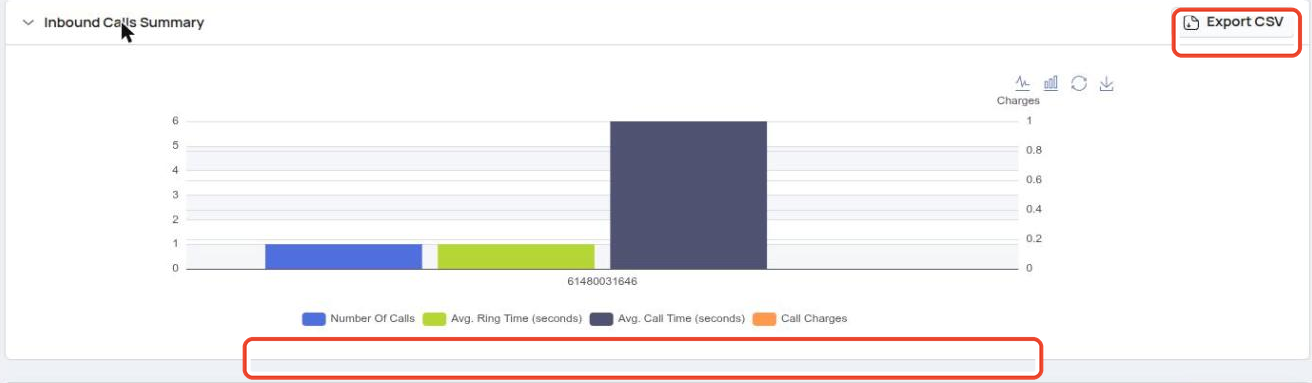
0-second calls are left out of call counts and average times by default, but still count toward charges and missed calls — so a chart total can differ slightly from a stat tile.
¶ Per-Number Breakdown
Click the Per-Number Breakdown card to expand it. Each service number gets a row, expandable down to direction and then user.
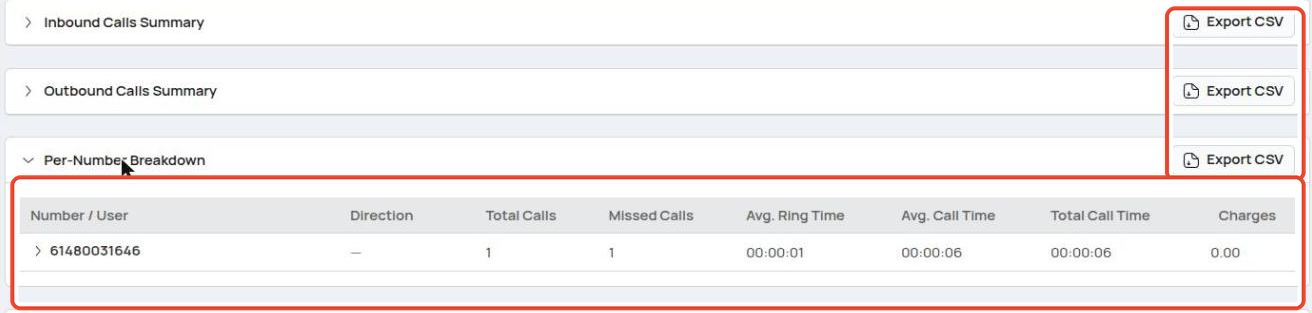
| Column | Meaning |
|---|---|
| Number / User | The service number, then direction, then user as you expand |
| Direction | Inbound or Outbound |
| Total Calls | Calls in the filtered period |
| Missed Calls | Calls that went unanswered |
| Avg. Ring Time | Average ring time |
| Avg. Call Time | Average talk time |
| Total Call Time | All talk time added up |
| Charges | Cost of the calls |
¶ Report Detailed Results
The full call log sits at the bottom of the page.
| Column | Meaning |
|---|---|
| Date | When the call happened |
| Direction | Inbound or Outbound |
| User | Who handled the call |
| Calling From | The caller's number |
| Calling To | The number dialled |
| Answered By | Who answered |
| Ring Time | How long it rang |
| Call Length | How long the call lasted |
| Charge | What the call cost |
| Actions | Play, Download, View Call Summary |
Play and Download appear when call recording is active on your plan. AI call summaries and transcripts are also plan-dependent. See Call logs & recordings.
¶ Export
| Where | Button | Format |
|---|---|---|
| Inbound Calls Summary card | Export CSV | .csv |
| Outbound Calls Summary card | Export CSV | .csv |
| Per-Number Breakdown card | Export CSV | .csv |
| Report Detailed Results table | Export Excel | .xlsx |
Export Excel stays disabled until you have run a search, so it always exports the calls matching your filters.
¶ Schedule reports by email
Go to Calls & Records → Report Notifications and click Add Schedule.
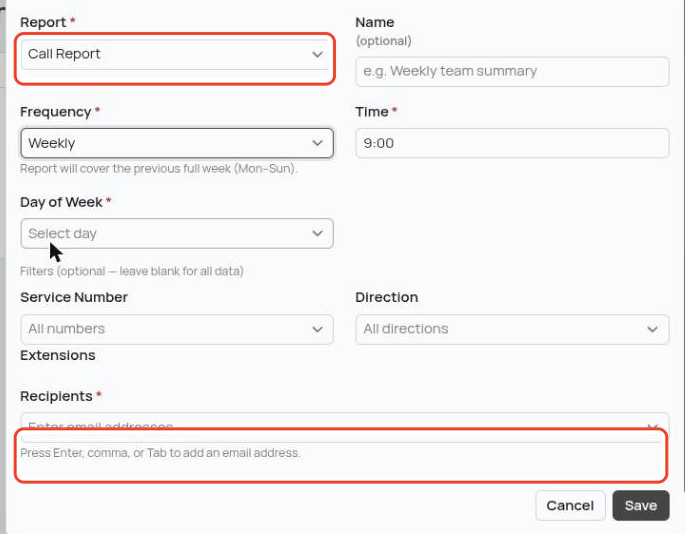
| Field | What to set |
|---|---|
| Report | Which report to send: Dashboard, Call Report, User Usage Report, Inbound Geo Report, Queue Report |
| Name | Optional label so you can tell two schedules of the same report apart |
| Frequency | Daily, Weekly, or Monthly |
| Time | When it sends (defaults to 09:00) |
| Day of Week / Day of Month | Shown for Weekly / Monthly |
| Filters | Optional — e.g. Service Number, Direction, Extensions — leave blank for all data |
| Recipients | Email addresses (press Enter, comma, or Tab after each; up to 25) |
You can create more than one schedule of the same report — for example, a daily and a weekly Call Report. A weekly report covers the previous full week (Mon–Sun).
Use the row's Test action to send a one-off copy to yourself. A disabled schedule shows a dash under Next Run.
¶ Related pages
- Queue report — queue-specific stats
- AI agent activity — reporting for calls handled by AI agents
- Call logs & recordings — the recording plan
- Call routes