¶ Prerequisite/Requirement
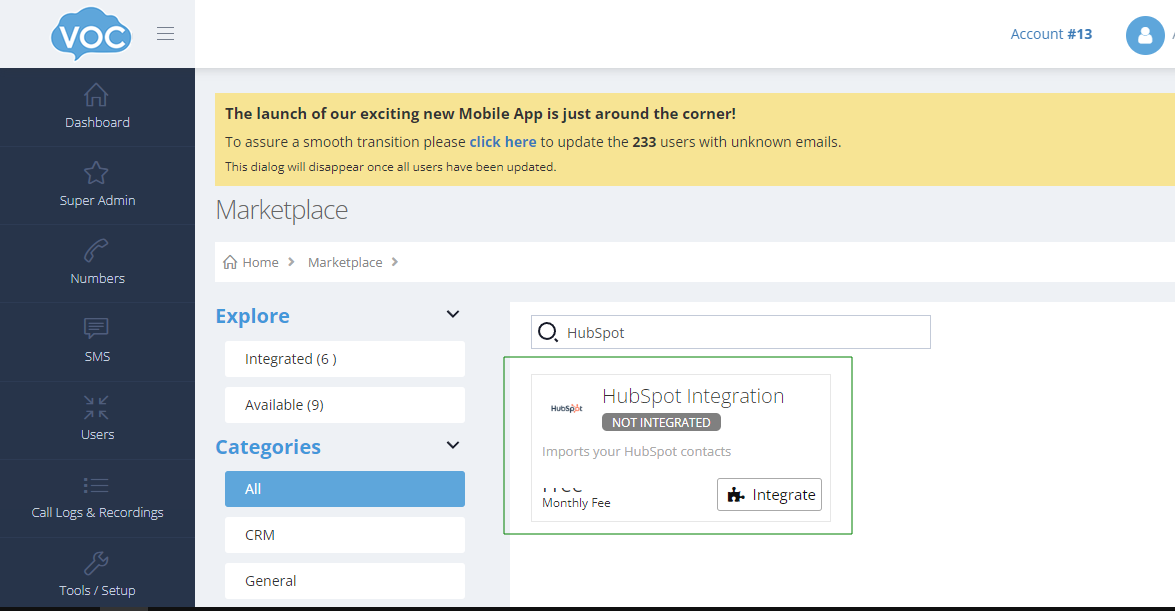
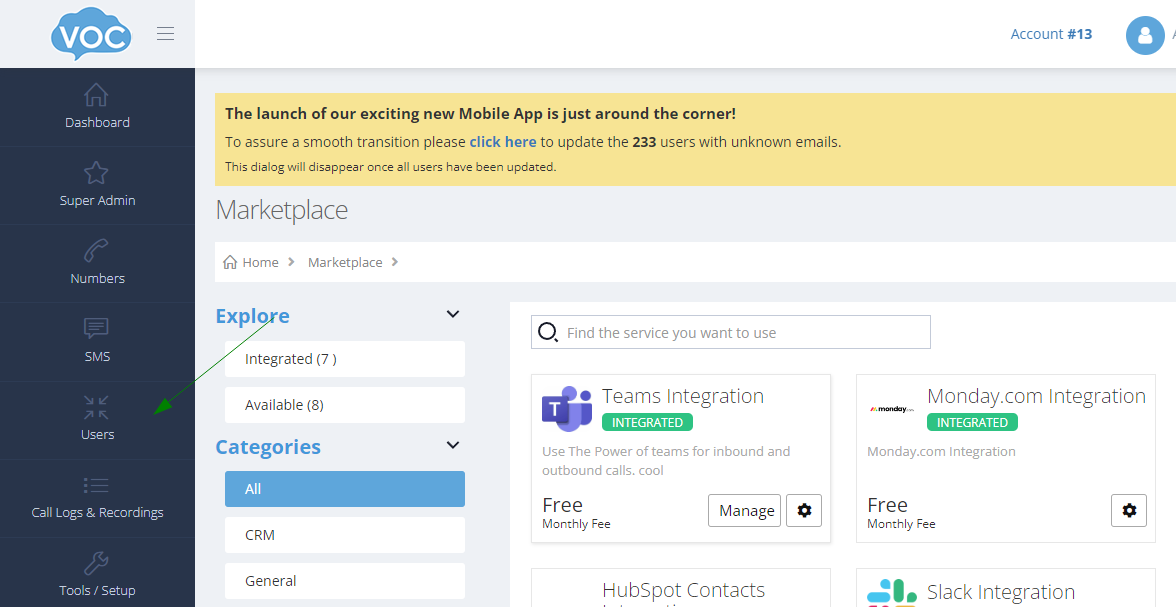
- Integrated HubSpot in VOCPhone Marketplace https://portal.vocphone.com/?p=marketplace.
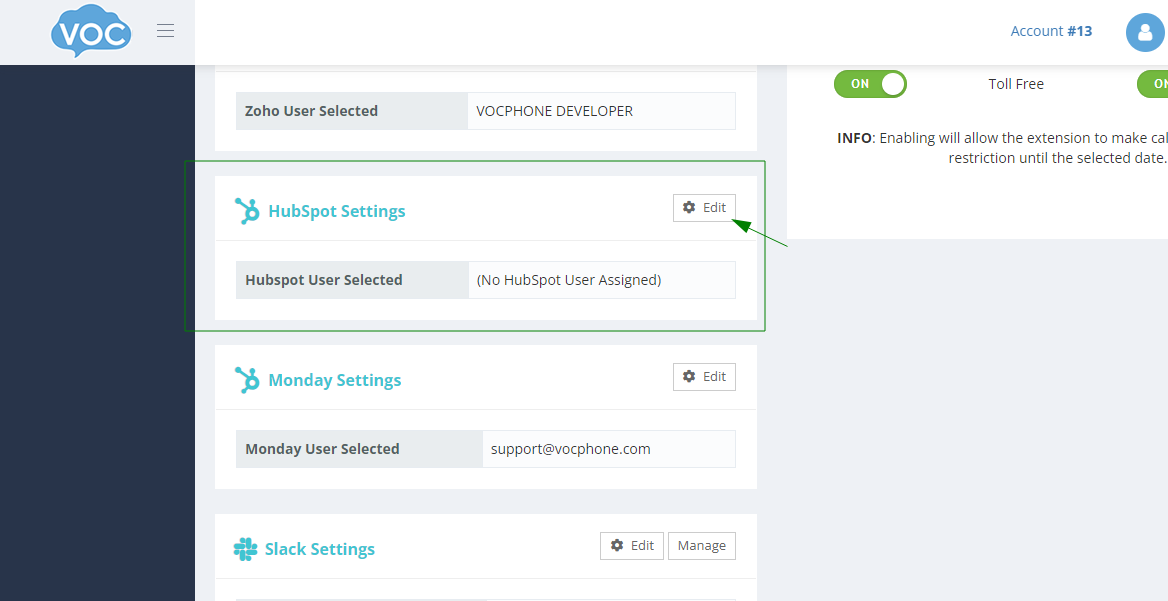
- You have to set the user(extension) that your HubSpot account will use to make phone calls.
¶ Setup
¶ Logging in to HubSpot account
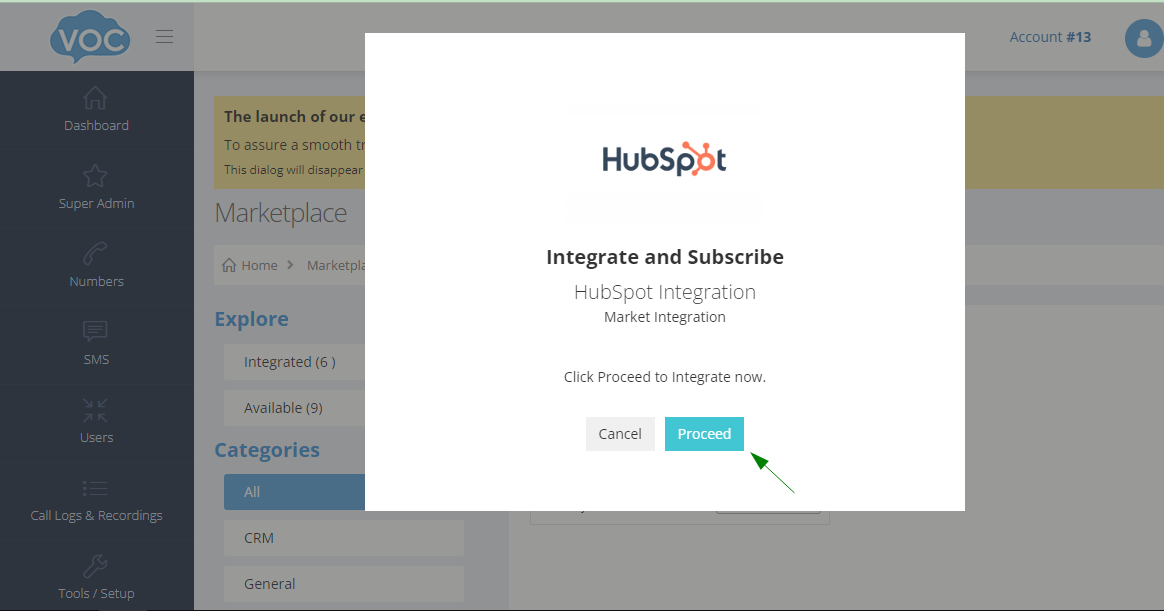
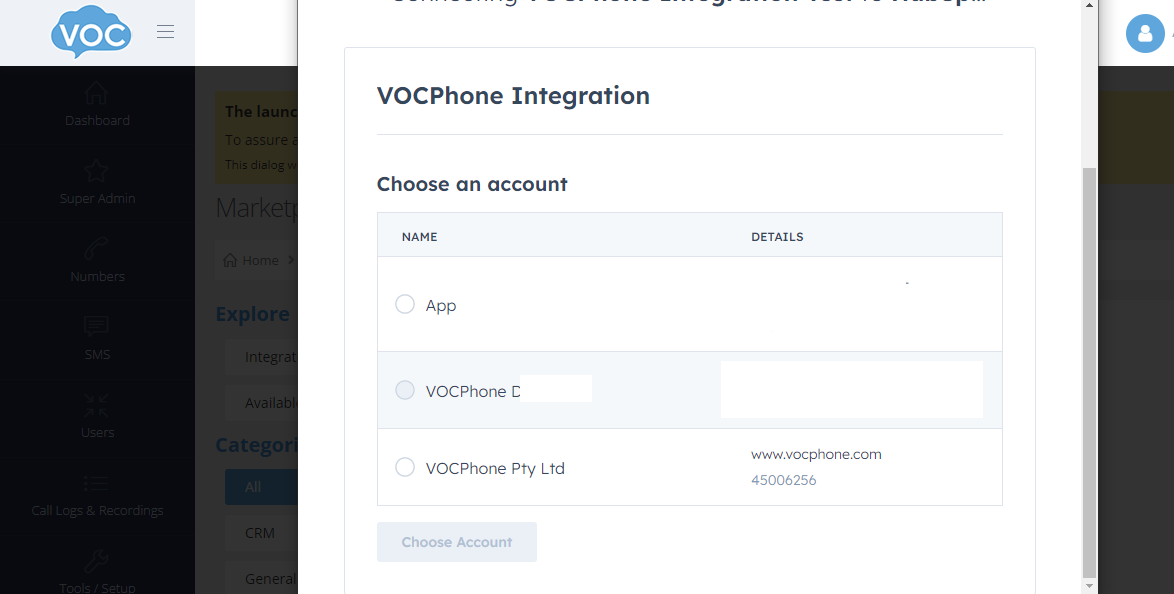
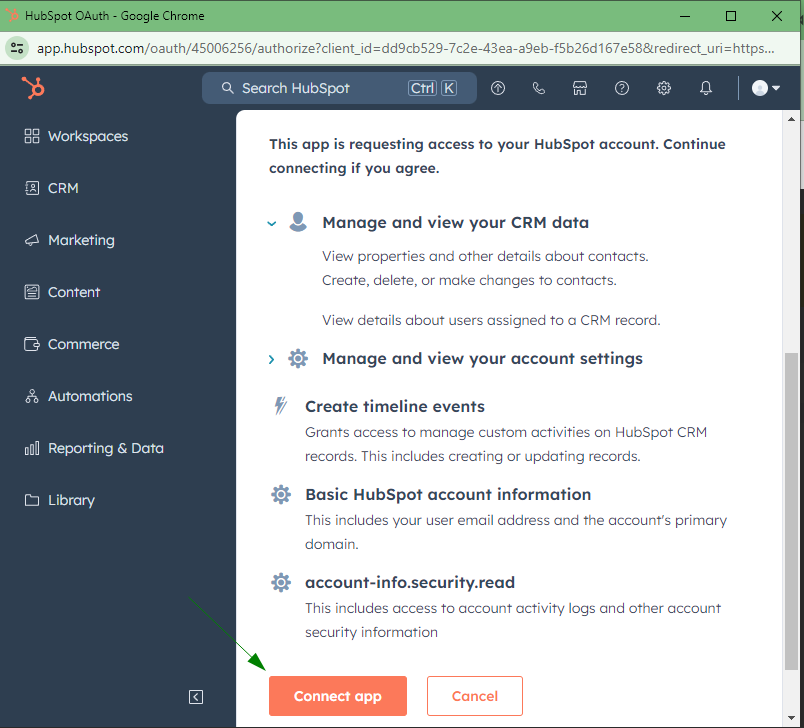
After clicking the Proceed button, you will have to login to your HubSpot account. If you have multiple accounts, you will have to choose where to integrate vocphone.
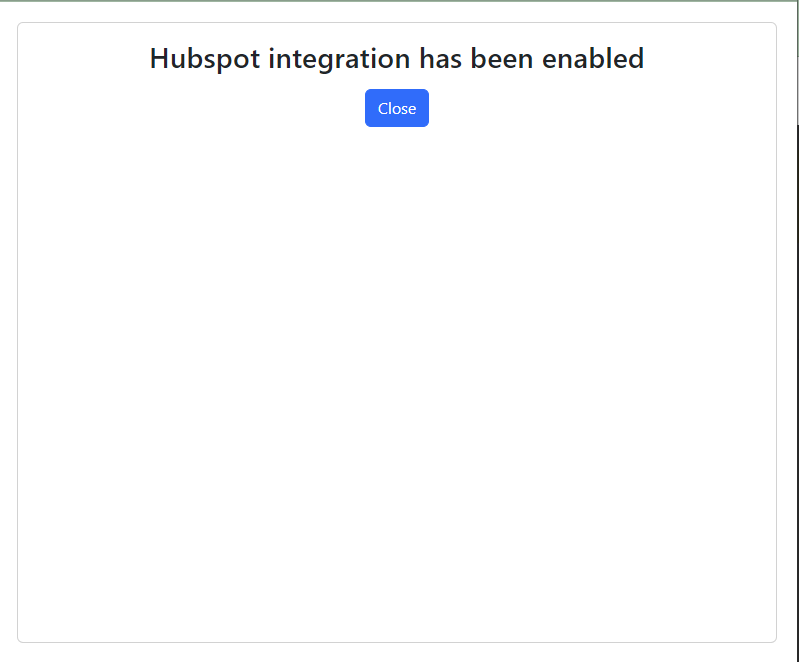
You should see a success message as shown below.
¶ Setting your HubSpot account for a user.
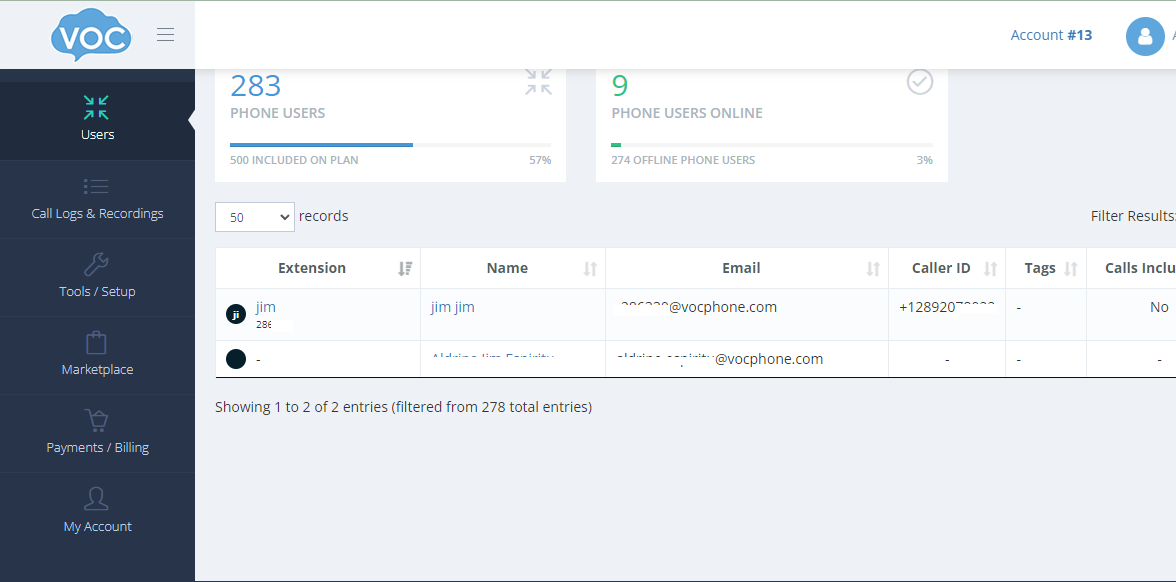
Go to Users and choose the user that you want to use for making phone calls in your HubSpot account.
Log into your customer portal.
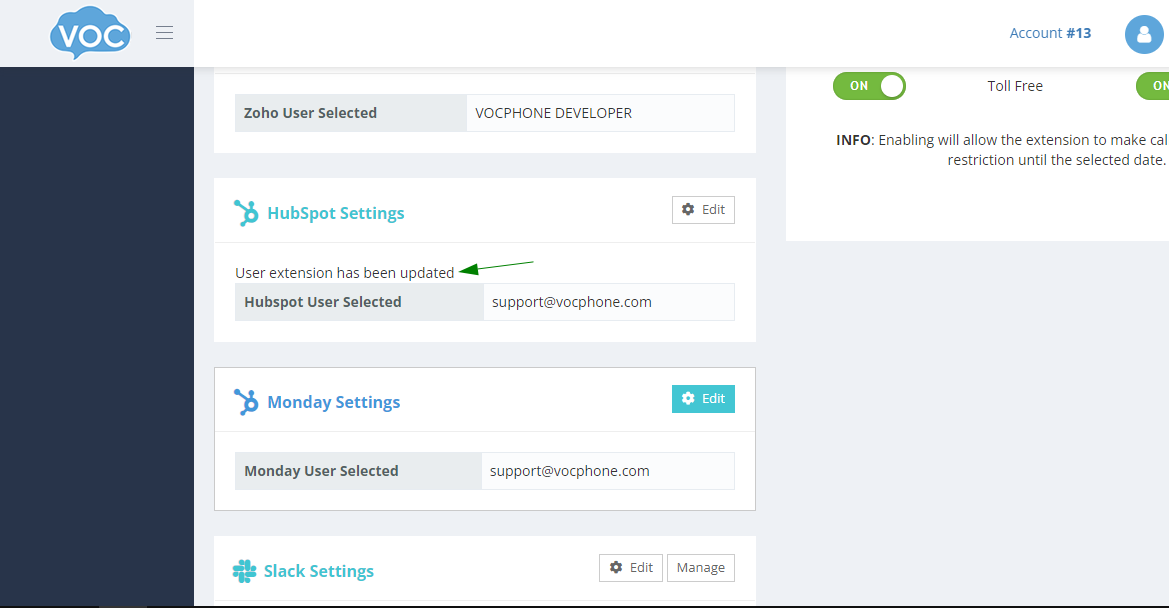
A HubSpot user can be linked to one extension at a time. In the HubSpot user drop-down, anyone already linked to another user is marked — currently on extension 123456. Choosing them moves them to this user and clears them from the other extension; the success message names the extension that was cleared.
It should show a success message as shown in the image below.
¶ Make phone calls in HubSpot CRM.
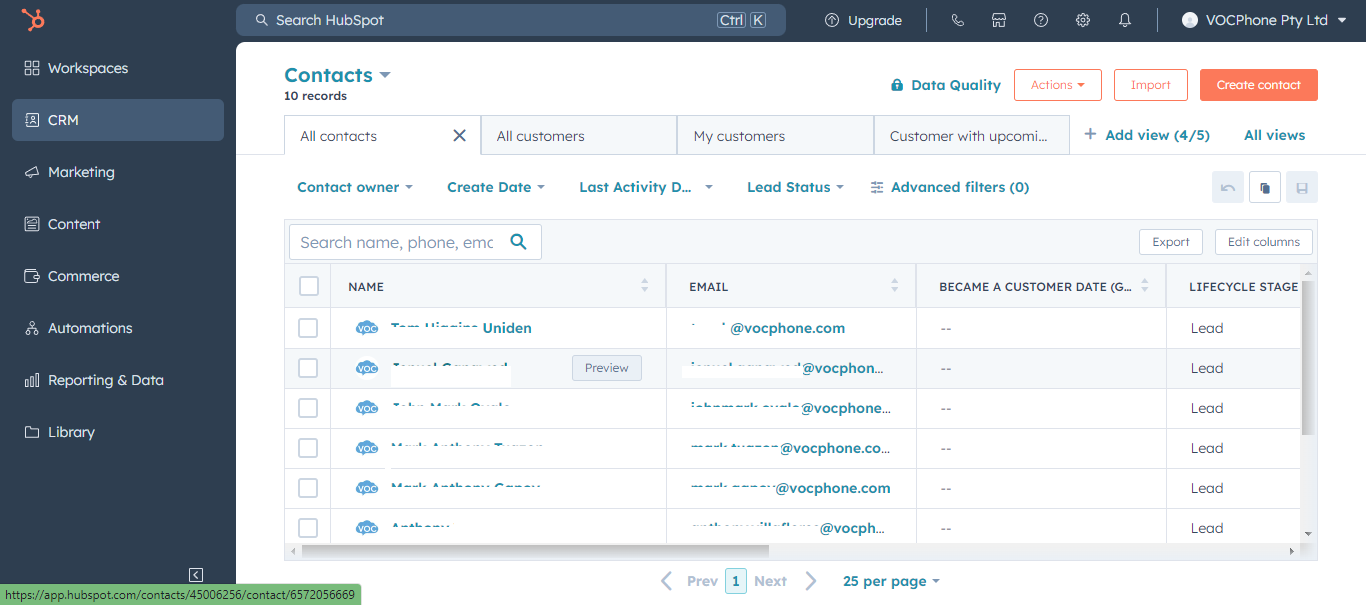
Login to your HubSpot account. Go to Contacts, then choose a contact to call.
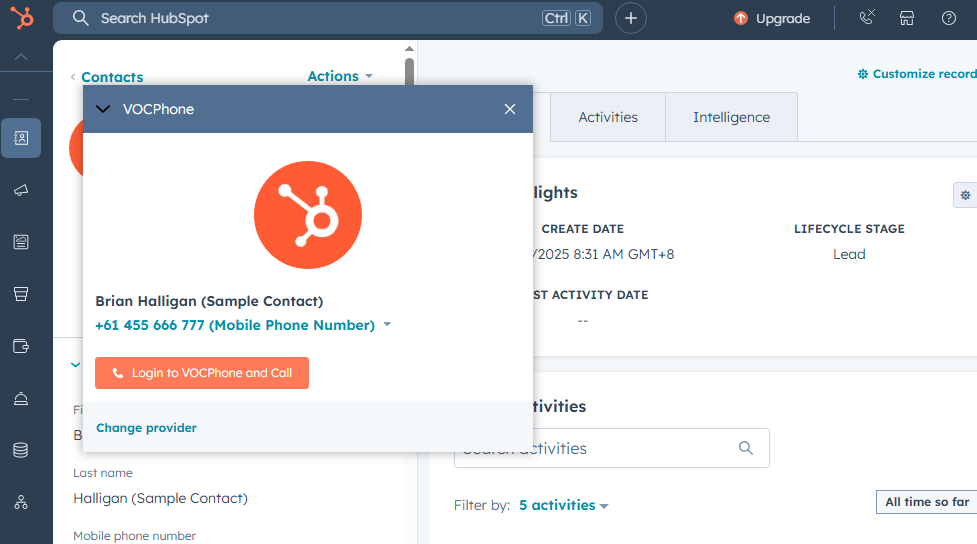
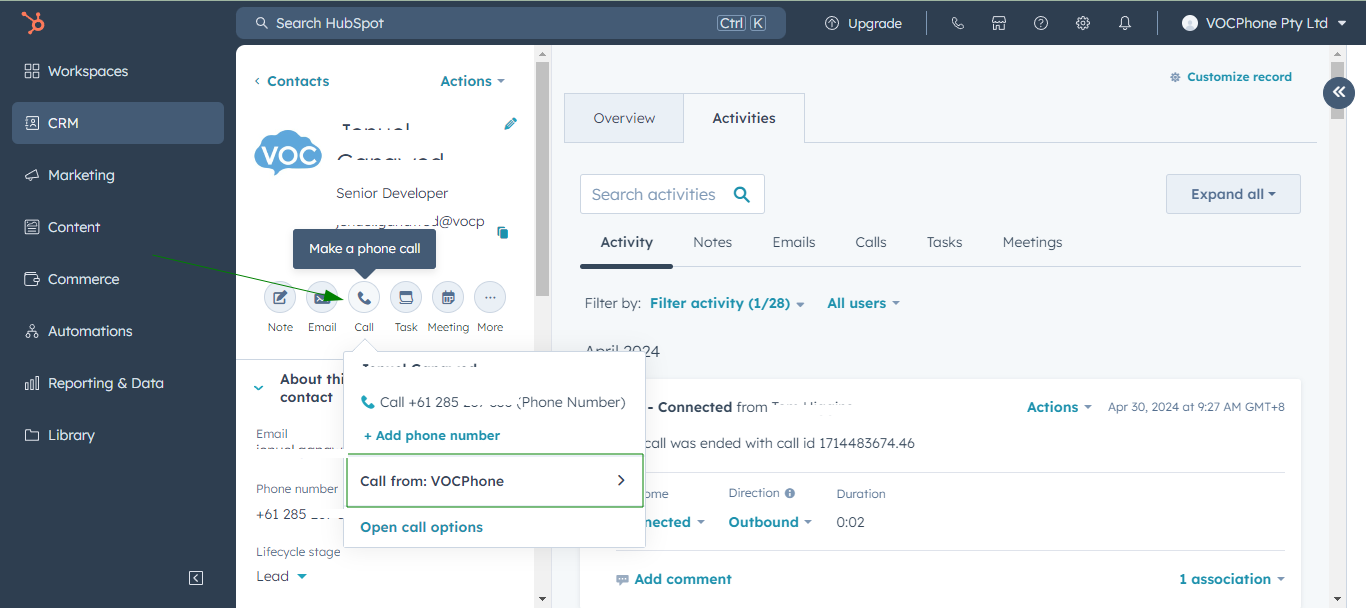
Make sure that VOCPhone is the selected call provider, then click Call +61….
Sometimes this is not the case and a dialog appears after clicking the call button, In the dialog, find and click the "Change Provider" link, to set provider to VOCPhone.
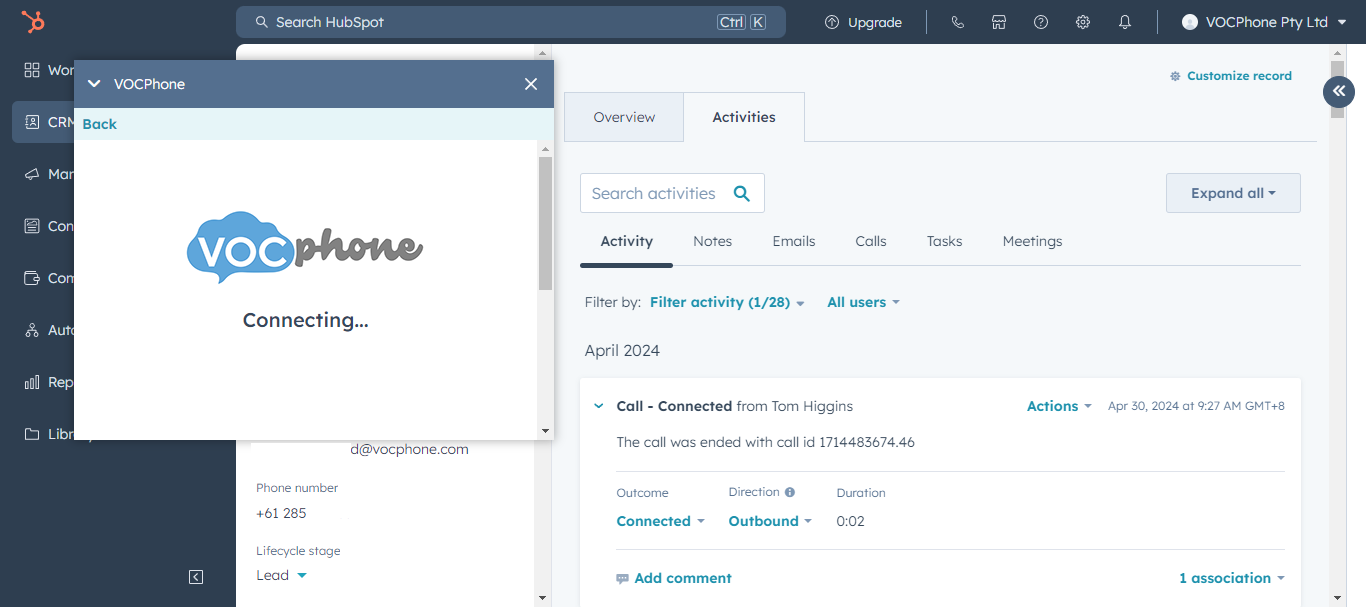
You should see a small window as shown below. This is the Calling Widget.
¶ "Call from: VOCPhone" missing
If you cannot find VOCPhone from the display calling options, Click "Open call options"
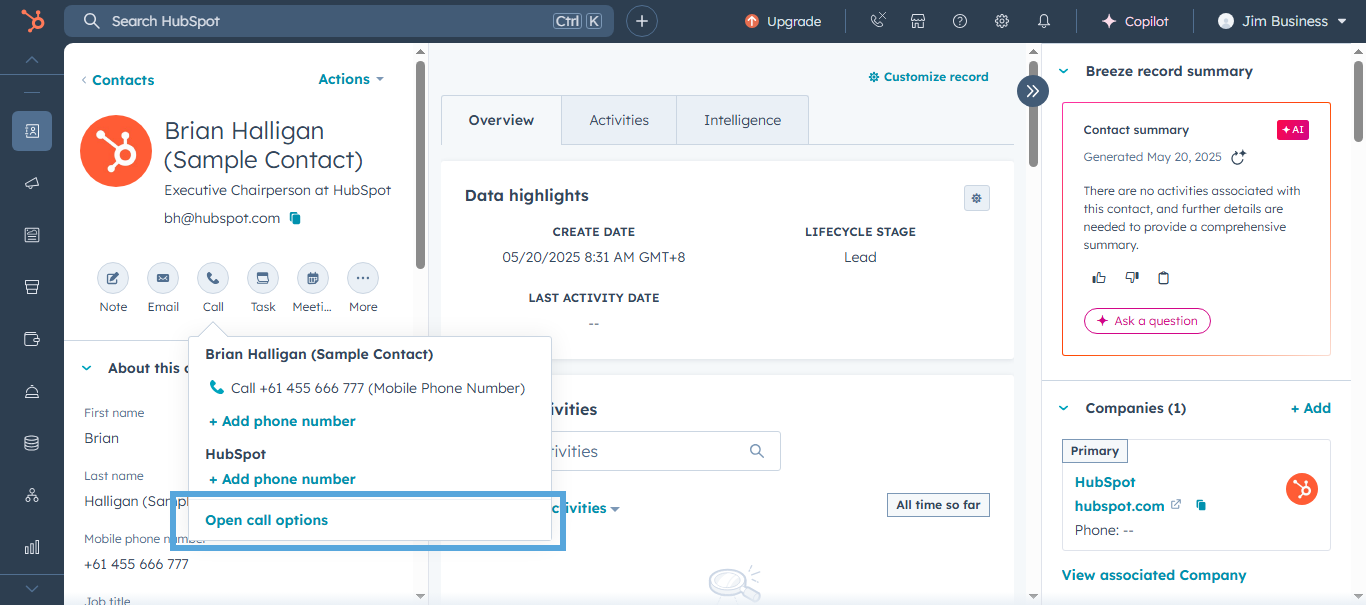
You can also try to click the Change provider, if the window is from a different provider, if VOCPhone's page appeared, click Login to VOCPhone and Call.