¶ How to Clear App Data (Windows)
Sometimes the VOCPhone Desktop app can run into problems — failing to log in, not syncing your messages or contacts, or behaving unexpectedly after an update. Clearing the app's local data (its App Data) gives the app a clean start and resolves most of these issues.
⚠️ Before you start
Clearing the App Data will sign you out of the app and remove locally stored settings (such as your saved login and local cache). Your account, call history, messages and contacts are stored safely in the cloud and will sync back automatically once you log in again.
¶ Step 1 — Close the VOCPhone Desktop app
Make sure the app is completely closed before you delete its data — otherwise Windows may refuse to delete the folder or the app may recreate the files.
- Close the main app window.
- Check the system tray (bottom-right of the taskbar, near the clock). If the VOCPhone icon is still there, right-click it and choose Quit / Exit.
¶ Step 2 — Open the Run dialog and go to App Data
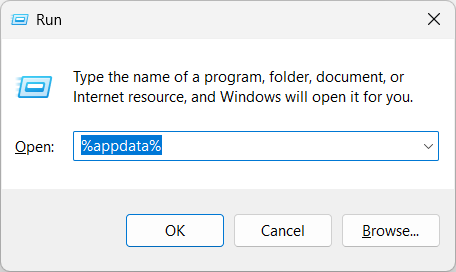
Press the Windows key + R together on your keyboard. This opens the Run dialog.
In the box, type the following and click OK (or press Enter):
%appdata%
This opens the AppData → Roaming folder in File Explorer.
¶ Step 3 — Delete the VOCPhone-Desktop folder
In the Roaming folder, find the folder named VOCPhone-Desktop.
- Right-click the VOCPhone-Desktop folder and choose Delete, or
- Click it once to select it and press the Delete key on your keyboard.
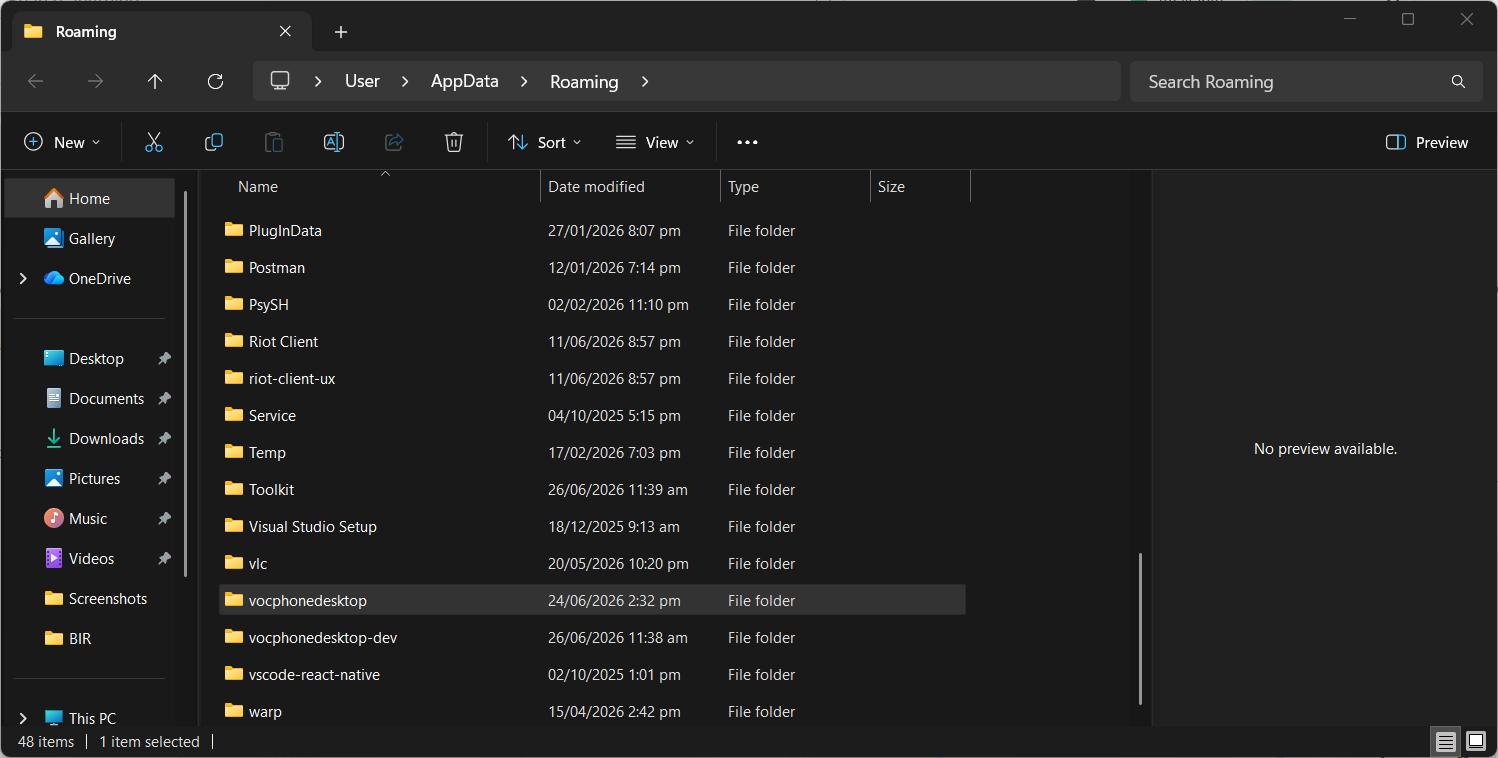
💡 Can't see the folder? It may be listed under a slightly different name — look for anything starting with VOCPhone or vocphonedesktop. If nothing is there, the app simply hasn't created data yet and there is nothing to clear.
¶ Step 4 — Reopen the app and log back in
- Open VOCPhone Desktop again from your Desktop or Start menu.
- Enter your login details (and your PIN if prompted).
- Allow a few moments for your messages, contacts and settings to sync back from the cloud.
The app now runs with a fresh, clean set of data. ✅
¶ Need Assistance?
If you run into any trouble or have questions, our support team is happy to help.
- Email: support@unidenvoice.com
- Phone: 1300881662
- Hours: Monday – Friday, 9am – 5pm AEST