Time conditions let a single phone number route calls one way during business hours and a different way after hours, with public holidays handled automatically. This page walks through the full setup on a number, building both routes, holiday handling, and the *280 override you can dial from any phone.
¶ How time conditions work
Each number on your account has its own call route. When you enable Time Conditions on a number, that route splits into two parts:
| Part | When it runs |
|---|---|
| Follow These Time Conditions | During the business hours you define |
| Otherwise, follow this default route | Outside business hours, and on public holidays (unless the holiday has its own route) |
Time conditions are set per number. If you have several numbers that need the same schedule, you configure each one — but the *280 override toggles all of them at once.
Before you start, decide what each mode should do. A typical setup is: business hours ring a call group, after hours play an announcement then go to voicemail.
¶ Turn on time conditions for a number
- Go to Numbers → Manage Number and select the number you want to configure.
- Open Call Routing and click Edit.
- Switch Time Conditions to ON.
- The route now shows two sections: Follow These Time Conditions (the business-hours route) and Otherwise, follow this default route (the after-hours route). The steps under the default route are what callers get after hours and on public holidays.
- Click Edit Time Conditions to define the schedule and both routes.
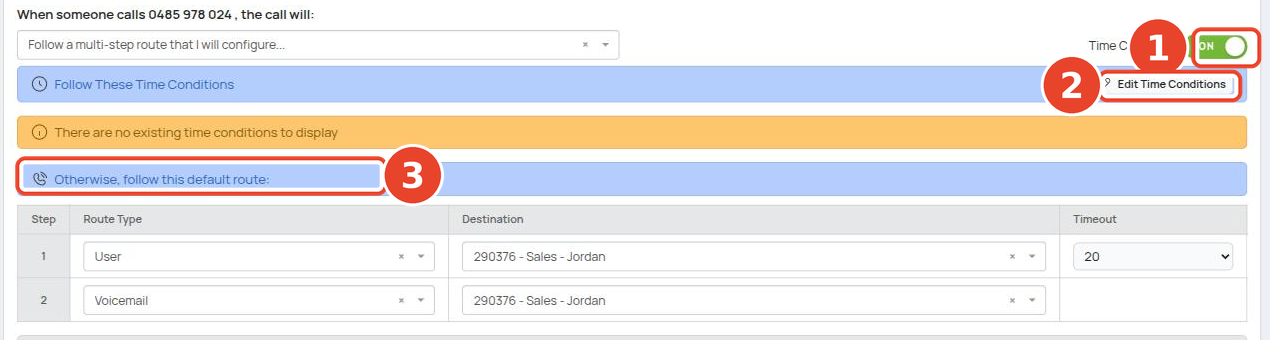
In the screenshot: ① is the Time Conditions toggle, ② is Edit Time Conditions, and ③ is the default route that applies after hours.
¶ Set the state
At the top of the Time Conditions page, choose your State (e.g. New South Wales).
The state selection drives which public holidays apply to this number. If you select the wrong state, the number will switch to after-hours mode on the wrong holidays.
Pick the state where your callers expect you to be open, not necessarily where your office is registered. A national line serving mostly NSW customers should use New South Wales.
¶ Build the business hours schedule
Under Business Hours, add one row per day or time block. Each row has three fields:
| Field | What to enter |
|---|---|
| Day | The day of the week the row applies to |
| Time From | When business hours start on that day (e.g. 9:00 AM) |
| Time To | When business hours end on that day (e.g. 5:00 PM) |
- Set the first row, for example Monday, 9:00 AM to 5:00 PM.
- Click Add another condition and repeat for each remaining day or block.
- If a day has a split schedule (e.g. closed for lunch), add two rows for that day — one for the morning block and one for the afternoon block.
If every business-hours period should use the same route, leave the Single Route option selected — you build one business-hours route that applies to all rows.
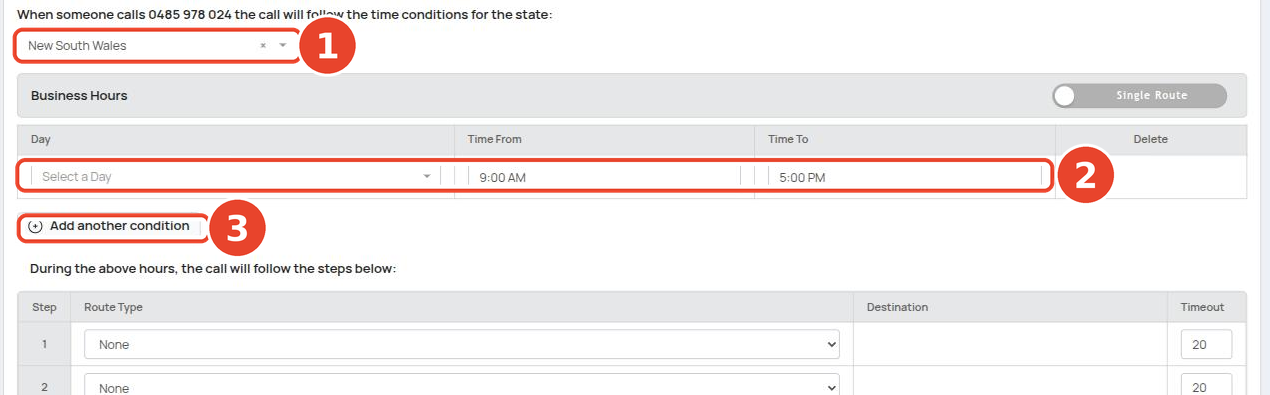
In the screenshot: ① is the State selector, ② is the set of business-hours day/time rows, and ③ is Add another condition.
¶ Build the business hours route
Under During the above hours, the call will follow the steps below, build the route callers follow when you are open. This works exactly like a normal call route — an ordered list of steps the call moves through:
| Column | Meaning |
|---|---|
| Step | Order the step runs in (Step 1 first, then Step 2 on timeout, and so on) |
| Route Type | What handles the call at this step — User, Call Group, Queue, Announcement, IVR, Voicemail, etc. |
| Destination | The specific user, group, queue, announcement or IVR for the step |
| Timeout | How long this step runs before the call moves to the next step |
The available route types are the same as any other call route — see Call Routes for what each type does.
A common business-hours route:
- Step 1 — Call Group → Reception, timeout 20 seconds.
- Step 2 — Voicemail → main mailbox.
¶ Public holidays
During any holiday listed in the Public Holidays section, calls follow the route set against that holiday. A holiday without its own route switches the number to after-hours mode for the whole day, regardless of the business-hours schedule.
You have two ways to populate the list:
| Method | How it works |
|---|---|
| Auto create upcoming public holidays | Leave this on with National & State Holidays selected. Holidays for your chosen state are added automatically, appearing about 2 weeks before each holiday. |
| Add Upcoming Holiday | Add specific dates manually — use this for company closures such as a Christmas shutdown, or to add a holiday the auto list does not cover. |
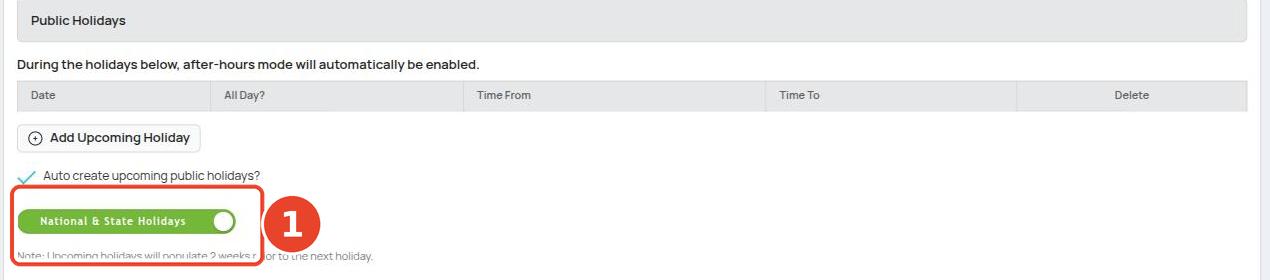
In the screenshot: ① is the Auto create upcoming public holidays setting.
Auto-created holidays appear roughly 2 weeks in advance, so don't be concerned if a holiday months away isn't listed yet — it will be added before it arrives.
If your business trades on a public holiday, delete that holiday from the list — otherwise callers get the after-hours route all day.
¶ Give a holiday its own route
To send one holiday somewhere other than the after-hours route — a Christmas-break announcement, or a diversion to a mobile — build a route for just that day:
- Click Route Setup on the holiday's row.
- Build the route in the pop-up, using the same Step / Route Type / Destination / Timeout layout as the business-hours route. The pop-up is headed with the holiday it belongs to — for example Public Holiday - Sep 16 2026 (All day) — so you can tell which day you are editing.
- Click Accept Route to close the pop-up. The row looks the same as before — there is no on-row marker for a holiday with its own route.
- Finish the rest of the page as normal — the holiday's route is stored when you save.
Auto-created public holidays keep the route you give them. Holidays you leave alone still fall back to the after-hours route.
¶ Build the after hours route
- Click Next: After Hours.
- Build the route used outside business hours and on public holidays that have no route of their own, using the same Step / Route Type / Destination / Timeout layout as the business-hours route.
- Save.
A typical after-hours route is:
- Step 1 — Announcement → "Our office is now closed" message.
- Step 2 — Voicemail → main mailbox.
Keep the after-hours route simple — an announcement followed by voicemail covers most cases. Once saved, always test by calling the number during business hours and again after hours to confirm each route behaves as expected.
¶ Override business hours from your phone
Sometimes you need to close early, open late, or open on a weekend without editing the schedule. Dial *280 from any device on the account to toggle between business-hours and after-hours mode.
Key facts about the override:
- It applies to ALL numbers on the account at once — you cannot override a single number this way.
- It only works if at least one number on the account has a time condition set.
- The override is temporary; it clears itself automatically as described below.
- To cancel an override you set earlier, dial *280 again.
When you dial *280, the system plays one of these messages:
| Message | Meaning |
|---|---|
| After Hours Mode Enabled | The account has switched to after-hours mode. It returns to business hours automatically on the next active day. |
| Business Hours Mode Enabled | The account has switched to business-hours mode. It returns to after-hours automatically at the end of the next business-hours period. |
| After Hours Override Removed | A previous override was cancelled; normal scheduled behaviour resumes. |
| No Number Found | No numbers on the account have a time condition set, so there is nothing to toggle. |
¶ Timing examples
Assuming a Monday–Friday 9:00 AM–5:00 PM schedule:
| You dial *280 at | Result | Reverts automatically at |
|---|---|---|
| Tuesday 4:00 PM (during hours) | After-hours mode starts now | Wednesday 9:00 AM |
| Tuesday 7:00 AM (before opening) | Business-hours mode starts now | Tuesday 5:00 PM |
| Saturday 12:00 PM (weekend) | Business-hours mode starts now | Sunday 9:00 AM — dial *280 again when you leave to go back to after-hours sooner |
If you open up on a weekend with *280, remember to dial *280 again when you leave. Otherwise business-hours mode runs until the automatic revert time, and calls keep ringing your open-hours route while nobody is there.